CHAPTER 01 · 10 MIN READ
How to keep a game character consistent
Choose one character image, note its key features, and compare new poses at the size players will see.
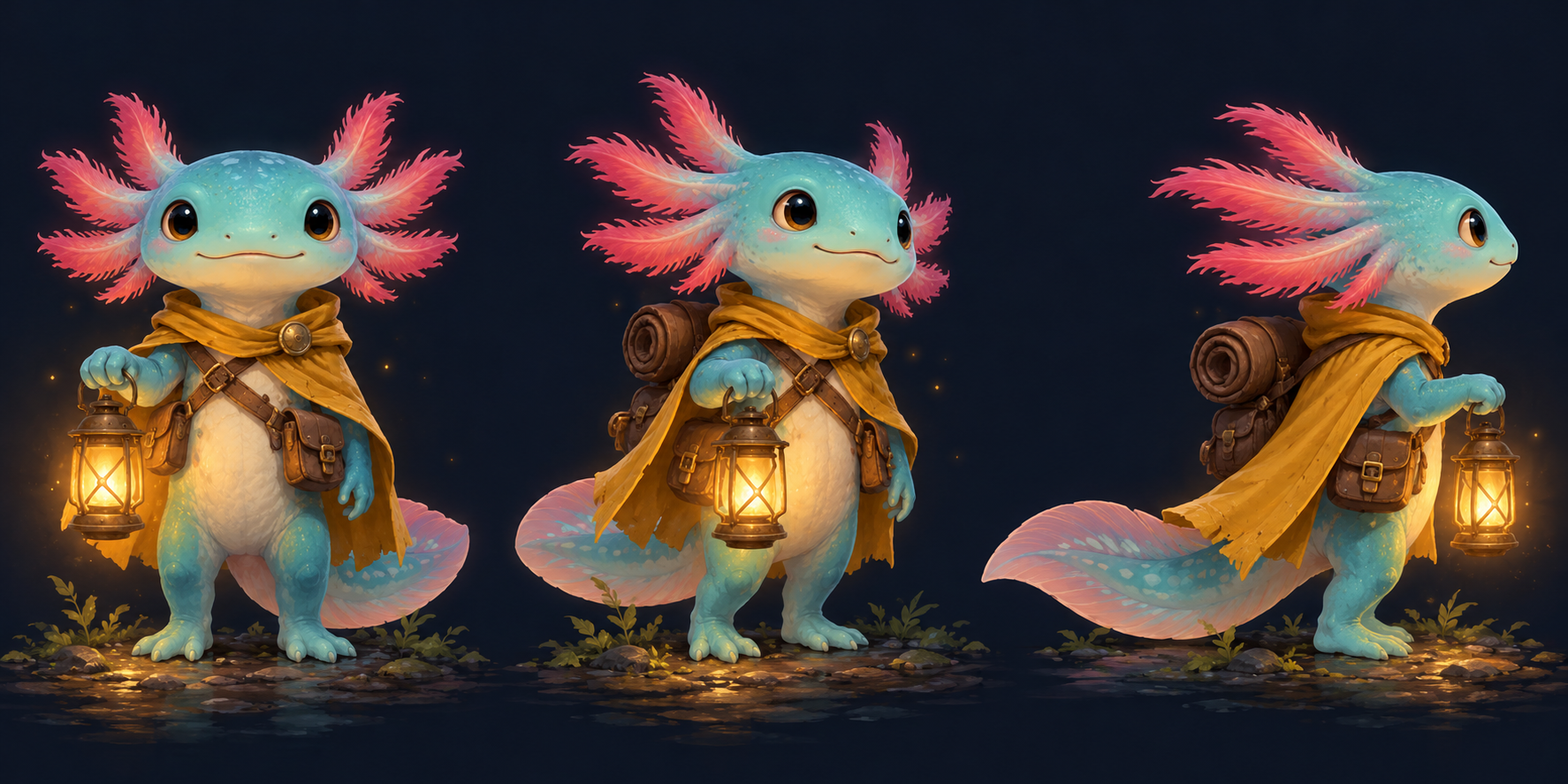
CASE STUDY / ONE SOURCE, ONE CHANGE
What should stay the same?
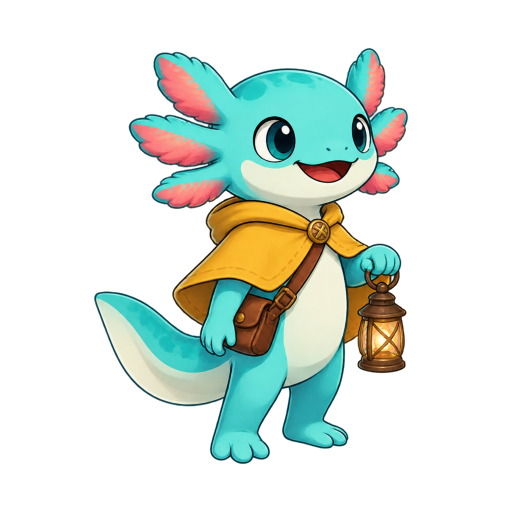
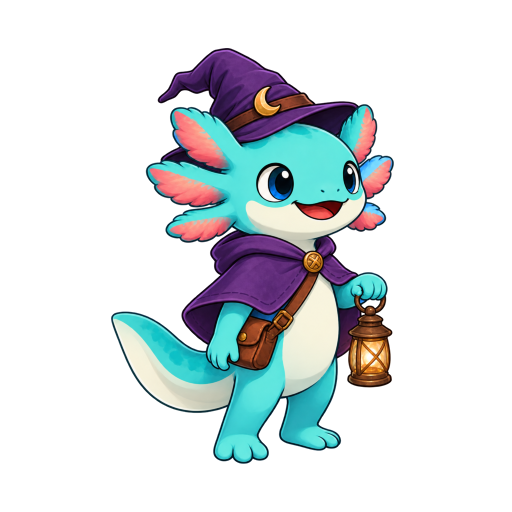
Start with this axolotl holding a lantern. We used the first image to create the second, changing its yellow cape to purple and adding a hat. An edit can change other details too, so compare the whole character before you keep it.
What to look for
- Outline and face: find the rounded head, pink gills and body. The hat adds height, but should not hide the identifying face.
- Equipment: locate the lantern, its carrying hand and the brown satchel in both images. Look at connections and hand shape, not only whether an object is present.
- Intended change: verify the purple hat and cape, then look for accidental changes to other features. Decide whether any unintended changes matter for your game.
REAL EXAMPLE / SOURCE TO ACTION
Compare the source with an actual moving pose
The image on the left was used to make the walk on the right, with an additional motion reference. The moving pose will not match the original pixel for pixel. Look for the details that make both images recognisably the same character.
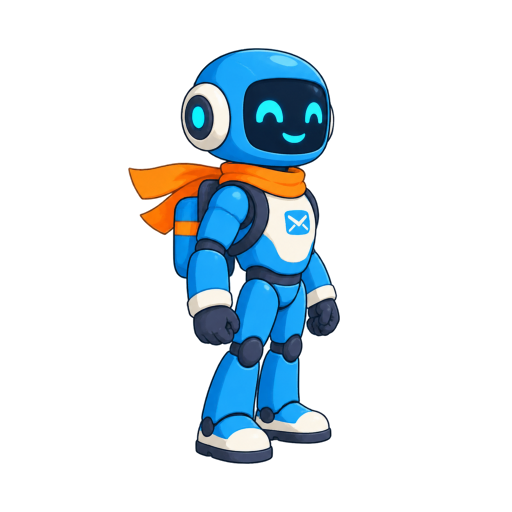
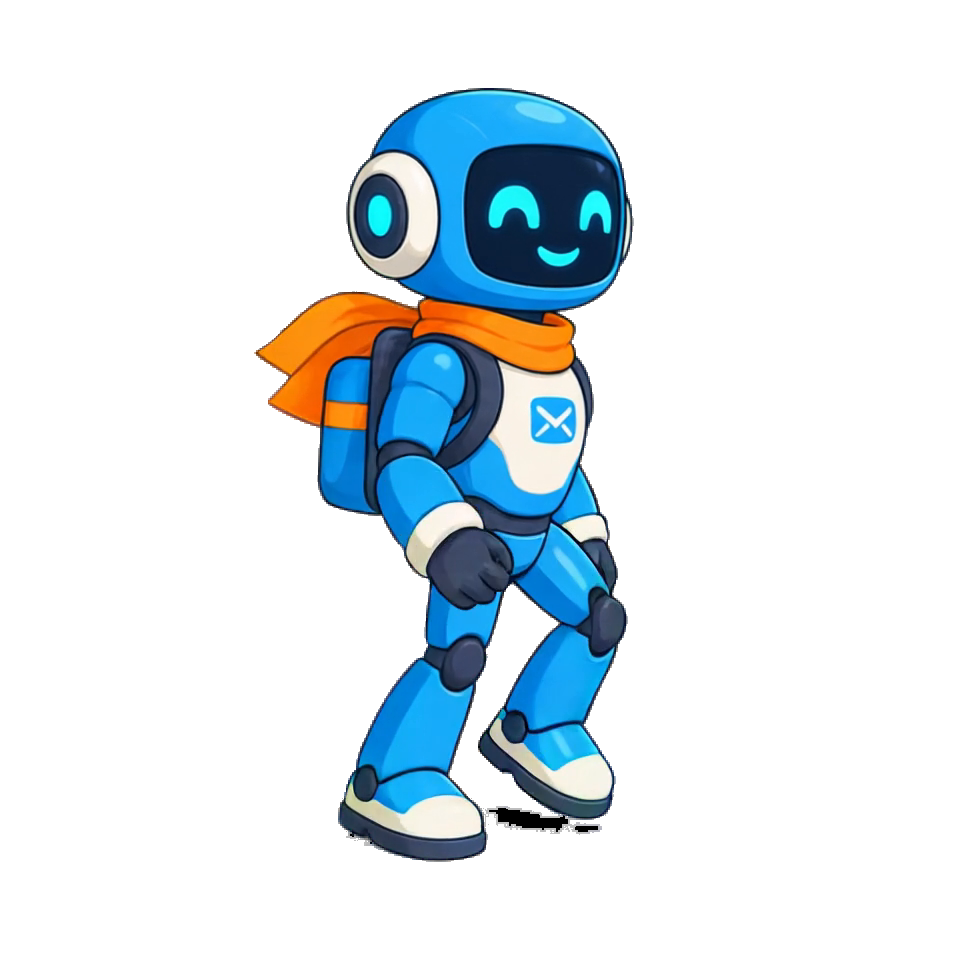
- Check the outline: compare the head, torso and boots at the size they will appear in the game.
- Check the details: find the blue armour and orange scarf. Note any change that makes your own character less recognisable.
- Check the full loop: a single good pose is not enough. Inspect every selected frame, especially hands, feet and any attached equipment.
- Decide what to keep: compare the original and the animation before choosing a result. If something important has changed, describe what is wrong and revise or redraw it.
Explore the robot’s actual walk files → · Start with your own character →
Make a character consistency sheet
A model sheet is a compact reference that makes a character’s defining features easy to compare. It can be a simple page in your drawing app: put your chosen character image on the left and a table on the right. Fill in details you can actually see; leave a hidden back view unresolved until you design it.
| Record this | Example from the axolotl | When reviewing a pose |
|---|---|---|
| Outline | Rounded head, wide gills, curved tail | Can you recognize the outline at game size? |
| Colours | Turquoise body, pink gills, cream belly | Are identity colours still in their expected areas? |
| Objects carried | Lantern and brown satchel | Are the hand, strap and attachment readable? |
| Allowed change | Cape and hat for this outfit edit | Did the requested costume change leave other features usable? |
For a new action, add the camera view, intended canvas size, and which objects must stay attached. A guide for a four-direction top-down game will not necessarily work for a side-view fighting game. If the design is asymmetric, a flipped sprite also flips the side of its equipment; decide whether to accept that or create the opposite view.
For pixel art, write down the original image size, colours and outline thickness. When you enlarge a preview, use nearest-neighbour scaling: it makes each pixel bigger without blurring it. Try a whole-number scale, such as 4×, and check the original image and transparent background too.
PUT IT INTO PRACTICE
Try these steps with your own art.
Create a character and choose the version you want to use as your reference.
Explore character creation ↗