An existing animation
Pack the reviewed frames from one named action in a saved run.

Make a sprite sheet from a saved animation result or its run ZIP. Pack the frames you have reviewed, then inspect the PNG atlas and available metadata.
Bring a saved animation result or its native run ZIP. For a PNG sheet, use Sprite Editor first. For loose PNG frames, build a saved run in Sprite Composer before packing.
SPRITE SHEET MAKER / SEE THE POSSIBILITY
Choose a reviewed, saved result. Arrange its poses into a grid, inspect the sheet and keep the returned file.
Try it with your source →INPUT · A SAVED ANIMATION RUN
Four supplied mouse-blacksmith poses, ready to pack. The sheet maker arranges the saved frames; it does not create new poses.
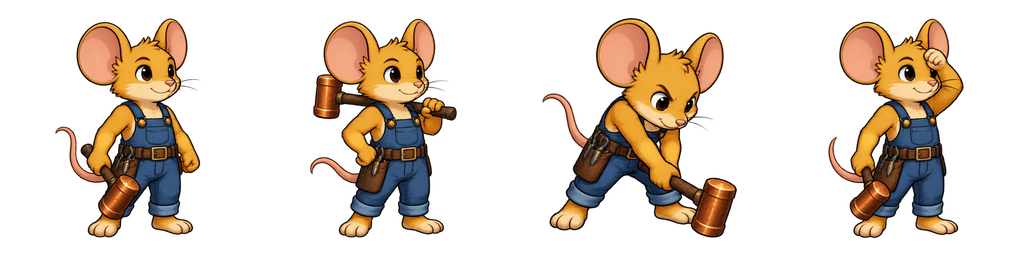
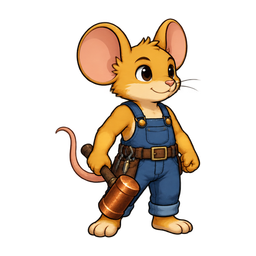
The same four poses, playing together.
Edited captures of actual workspace interaction; waiting time is shortened. The returned artwork and its original timing are shown separately above.
YOUR IDEA. YOUR NEXT STEP.
A sprite sheet organizes reviewed frames into a grid. Finish the pose selection and timing first, then inspect the returned sheet and keep its frame layout together with the saved animation.
Pack the reviewed frames from one named action in a saved run.
ZIP your PNGs, arrange them into named action rows in Sprite Composer, then build and save the run before packing it here.
Check the actual packed PNG against the source poses and preview before taking it into your own import workflow.
KEEP YOUR PROJECT MOVING
Refine your action frames, then turn the sheet into a moving preview you can share.
Watch an actual saved edit: omit one supplied pose, hold another and change the playback speed. Keep the original sheet for comparison.

The saved edit keeps three source poses and holds the middle pose for longer. The original sheet stays available.

3 source poses · 4 playback positions · 0.5 seconds
A real workspace edit and exported half-second GIF.
Edit your framesTurn the same action frames into a GIF. Set the grid and pace, then preview the complete movement before sharing it.

4 frames · 670 ms exported loop

Imported at 6 FPS. The GIF keeps all four poses; its frame delays are rounded to the GIF format’s clock.
The example converts four supplied ghost poses at 6 FPS.
Create your GIFCOMMON QUESTIONS
Prepare your brief or source here, then continue in your workspace. Confirm the task there and review its results before exporting.
Starting with separate PNG frames? Arrange loose PNGs in Sprite Composer, build a saved run, then return to pack it.
Use a compatible saved animation result or its native run ZIP. Import an existing PNG sheet in Sprite Editor, or arrange loose PNGs in Sprite Composer and save a run first.
Run the sheet maker on that saved source. The packer uses the run’s frames rather than generating a new character.
Check the returned sheet and metadata. Download the actual files, or return to the frame editor before packing again.
For a saved run, choose the frames you want to pack. For an existing PNG sheet, import its grid in Sprite Editor. For loose PNGs, upload an image ZIP in Sprite Composer, arrange named rows, then build and save the run. Packing does not create new poses.
Check frame order, cell size, margins and whether equipment is inside each cell. Keep the returned PNG and available metadata together. A demonstration does not certify your engine's import settings.
The atlas packer takes a compatible saved animation run or native run ZIP. Starting with loose PNGs? Put them in a ZIP, arrange named animation rows in Sprite Composer, then build and save the run before packing. For an existing PNG sheet, import its grid in Sprite Editor first.
They do different jobs. The generator creates artwork; the sheet maker packs existing reviewed frames. You can use both in the same MotifDeck workflow.
Yes. Use Sprite Editor to select and order frames, adjust placement and timing, then create exports from the saved result.
Download the PNG atlas and metadata returned by the packer for your run. Available files appear in the result; check them before importing into a game.
No. Packing arranges frames that already exist in a compatible saved run. Create or import the poses first, review their order, then pack the saved selection.
More workflow details in Docs. Frame allowances and Credits in Pricing.