Team colors
Give the same character a readable team distinction without requesting a new identity.

Swap selected colors across a PNG sprite sheet. Make team colors or enemy variants while keeping the original character, poses and equipment.
Bring a PNG sheet and the color mapping. Continue in your workspace to review the quote and palette results.
SPRITE RECOLOR / SEE THE POSSIBILITY
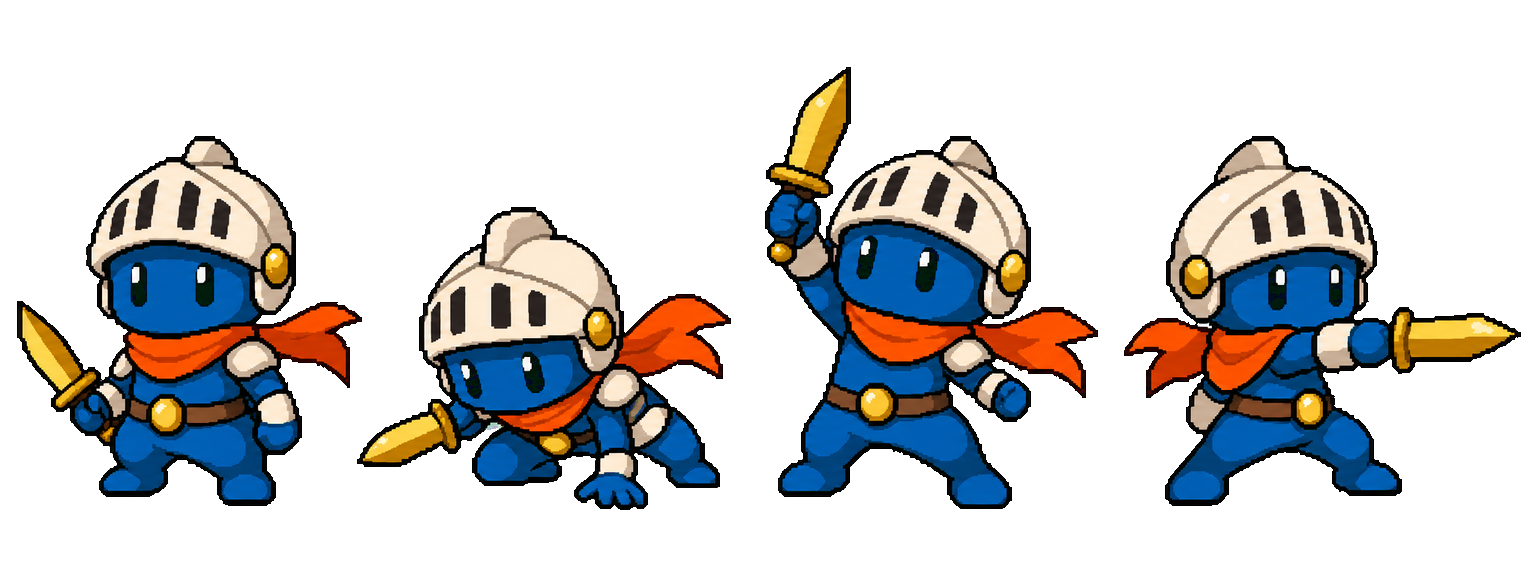
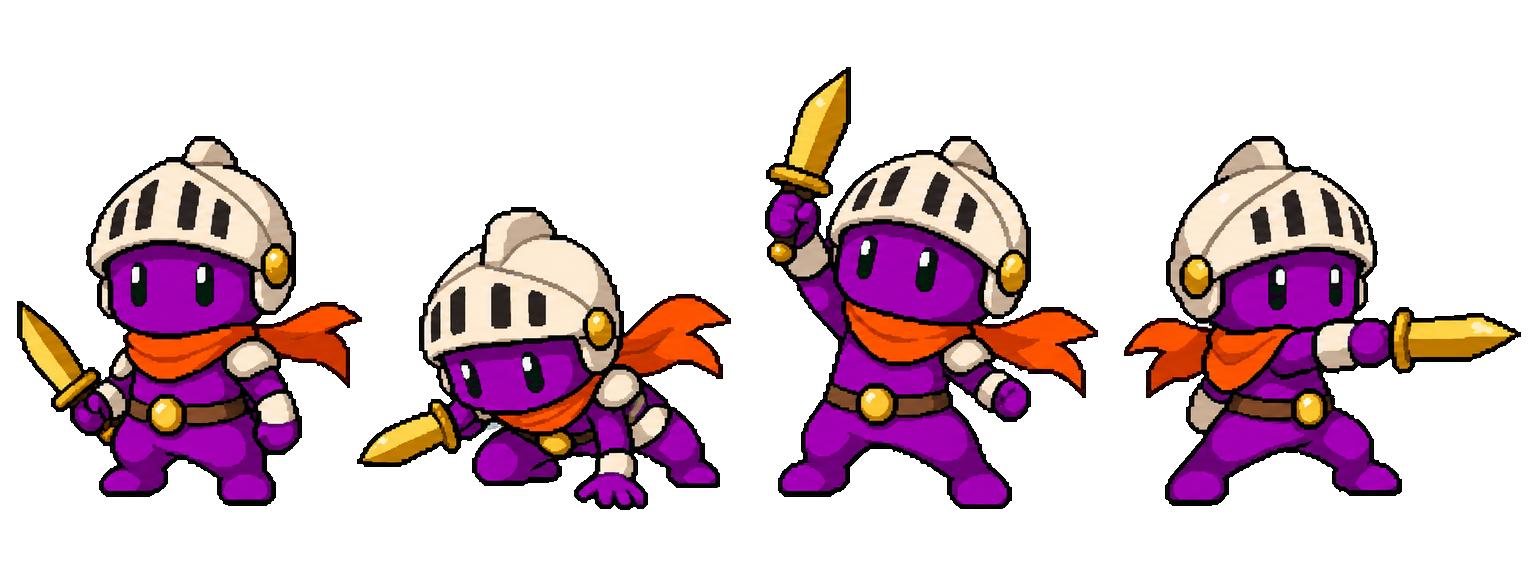
Apply one palette map to the supplied poses. Keep the shape, equipment and transparent background while you explore new colorways.
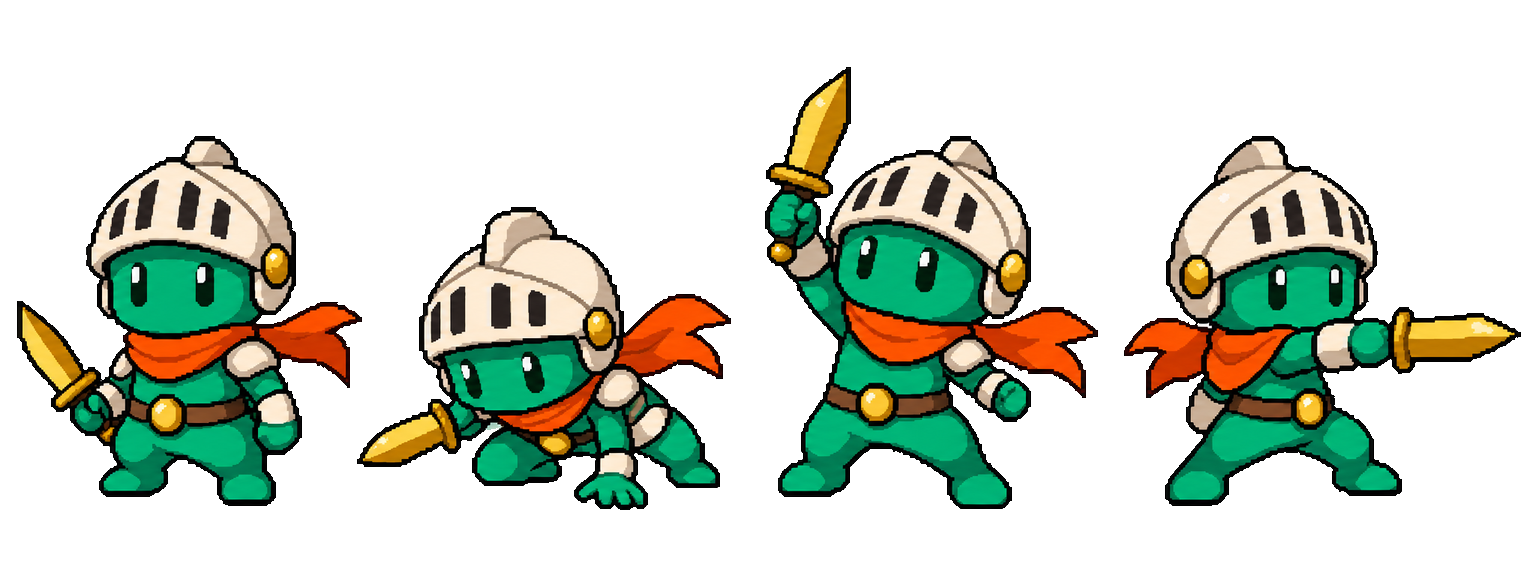
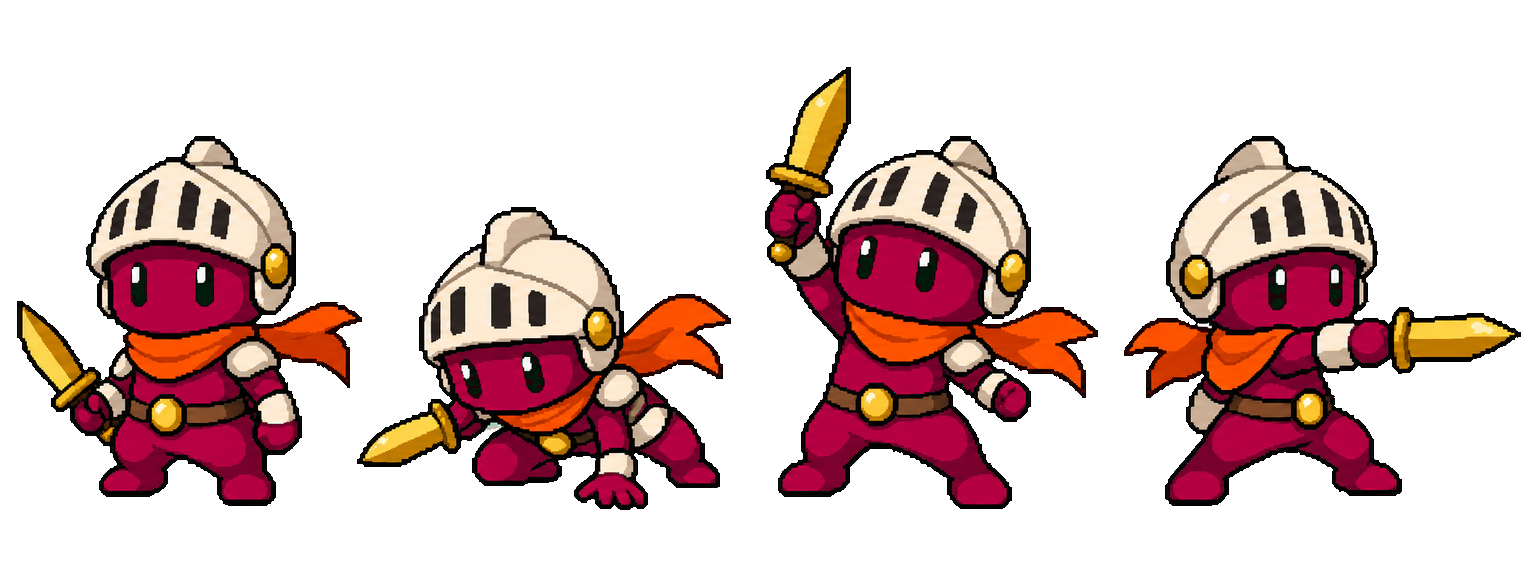
Try it with your source →One supplied sheet. Three actual palette outputs. Every version keeps the same four poses, 1536 × 576 canvas and source transparency.
YOUR IDEA. YOUR NEXT STEP.
Team colors and enemy variants should remain recognizably the same character. Apply a selected color mapping to the supplied sheet, then inspect its coverage throughout the action.
Give the same character a readable team distinction without requesting a new identity.
Use color to separate a variant while retaining the original poses and equipment.
Apply the mapping to the relevant action sheets and check every returned version, including the edges.
KEEP YOUR PROJECT MOVING
Carry the color direction into a wider action family, or build matching assets around your character.
ONE CHARACTER. MANY MOVES.
Ask Moti for a whole set of actions. Keep everyday movement and complete combat moves together, then review each result separately.







Seven motions from the same character reference · Complete actions replay for viewing; the final death pose is preserved.
FROM ONE CHARACTER TO A LARGER WORLD
Keep your character. Explore outfits and expressions. Build matching enemies and a world around them.
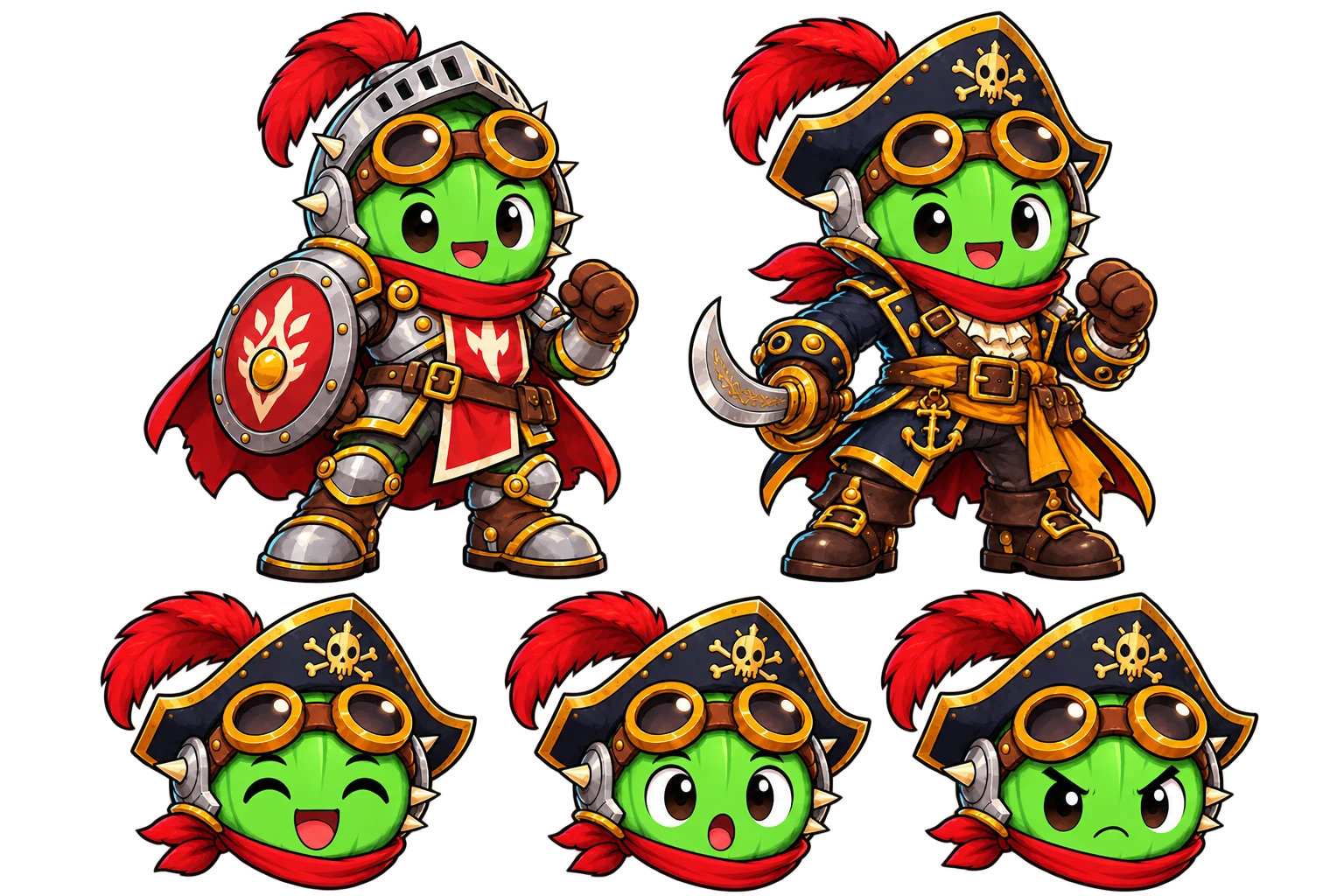
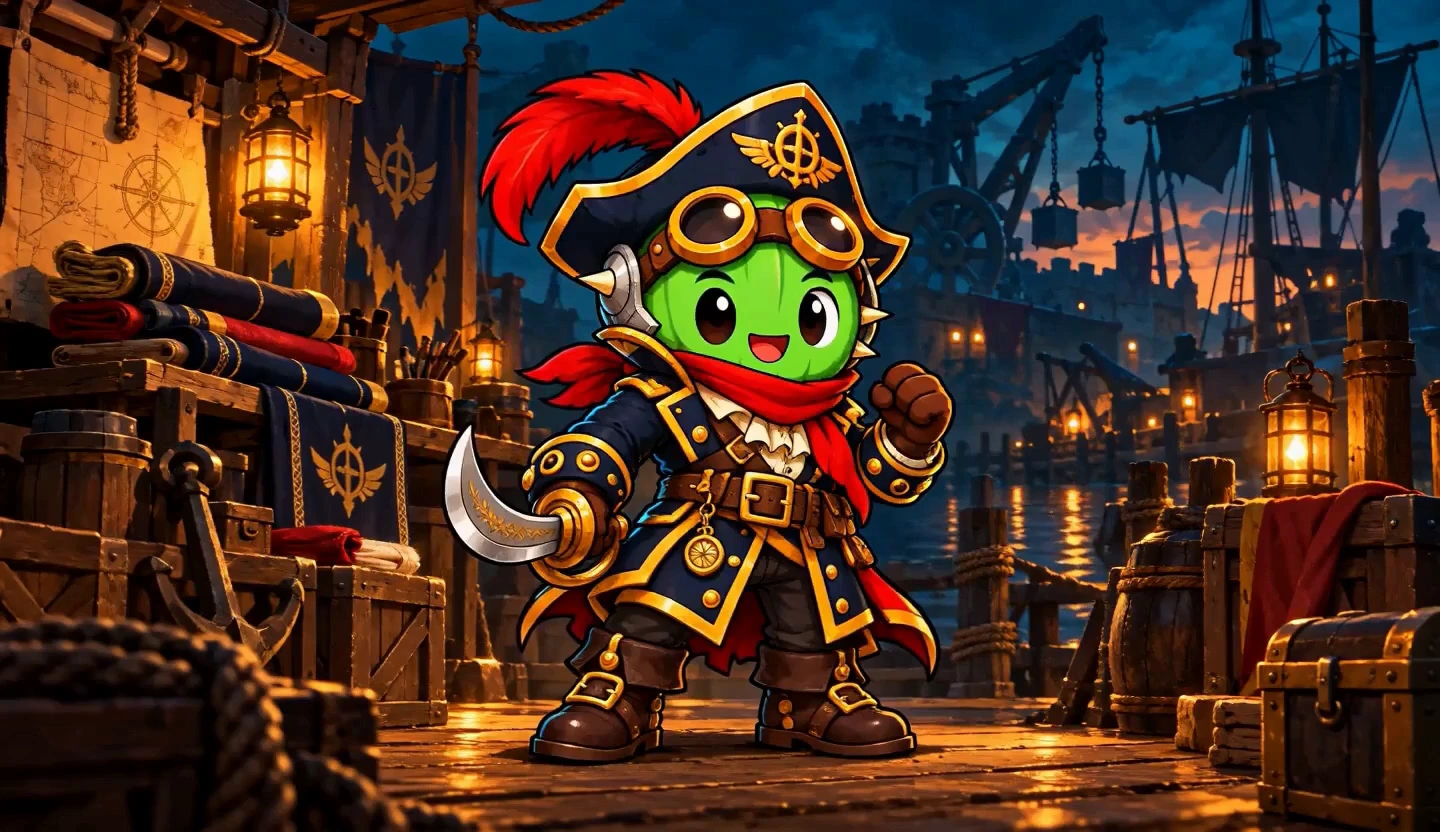
Explore new outfits while keeping your character’s identity.
YOUR CHARACTER → ITS WORLD → MATCHING LAYERS
Combine characters, backgrounds and props. Add supplied effects and a separate ground shadow. Adjust the shadow’s position and size, or export it on its own. Review Moti’s plan and quote before creating.
COMMON QUESTIONS
Prepare your brief or source here, then continue in your workspace. Confirm the task there and review its results before exporting.
Choose the character or action sheet you want to recolor, then continue in your workspace. Keep a copy of the approved source.
Set the source and replacement colors in the workspace. Review the current quote before confirming a new colorway.
Check every affected action and transparent edge. Download the returned variants that fit your game.
Bring the approved PNG sheet and choose the source and replacement colors. Decide which parts should change and which should remain. Clothing redesigns belong in a character revision workflow.
Compare every pose, small accessories and transparent edges. Similar shades can need attention. The example shows actual mapped PNGs across all four supplied poses; inspect your own returned sheet in the workspace.
No. The recolor tool replaces selected colors in your supplied sheet. The source poses are the starting point.
Yes. Use the same mapping across the relevant action sheets or a compatible animation set. Review every output to confirm the full set has changed.
Review the returned transparent edges and silhouette. A successful color mapping should not require a new background, but the actual output still needs inspection.
Use Moti with the approved character for outfit or equipment revisions. Recolor is for palette changes, not a clothing redesign.
Review the current quote in your workspace before confirming an extra colorway. Eligible included runs apply first; otherwise the quote shows the existing Credits needed. Preparing the public form does not start processing.
More workflow details in Docs. Frame allowances and Credits in Pricing.