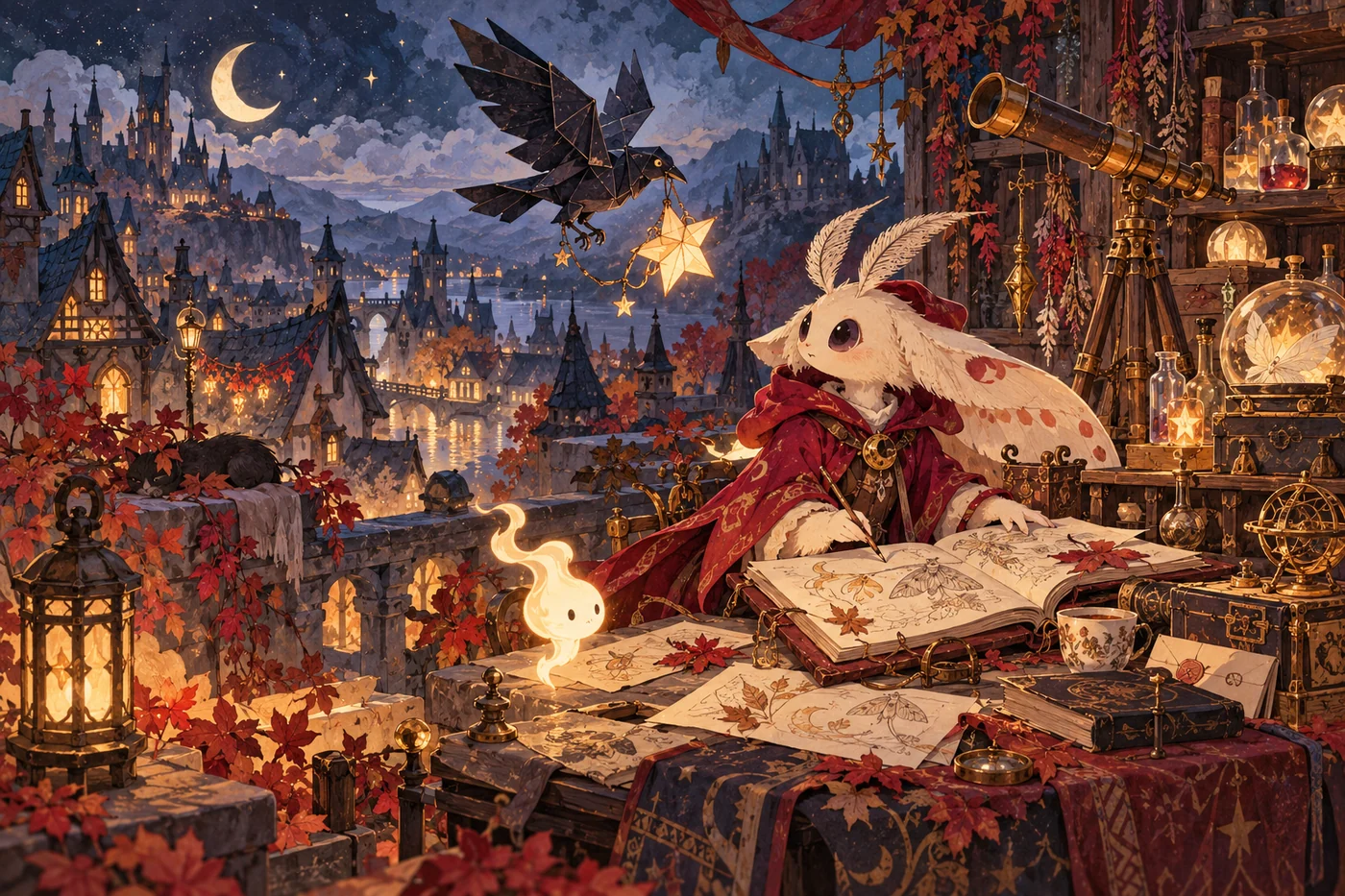
THE HALLOWEEN FIELD GUIDE
A small Halloween world.
Built one asset at a time.
How to make Halloween game art: three real studies, from an original character to a familiar face in costume and a world that belongs beside it.
Actual generated PNGs · Full creative briefs · Source and result comparisons
Editorial illustration · Actual tested files in the studies below
THE RULE THAT CONNECTS ALL THREE
Approve a source.
Then build from it.
Start with one useful asset. For an outfit change, use the exact original character. For a matching item or background, reuse your approved character as a style reference. Those are different jobs: one preserves an identity; the other carries a palette and drawing style into a new asset.
We generated, reviewed and exported these images in a local MotifDeck production test. The PNGs below are the actual results. The studies cover image creation and export; live account billing and saving to an online account were not tested.
The case-study files use Cartoon artwork. The isolated assets are 512 × 512; the background is 1024 × 1024. These are general 2D images, not native pixel sprites. For Pixel Art, choose a native 32, 48 or 64 pixel target and inspect the grid separately.
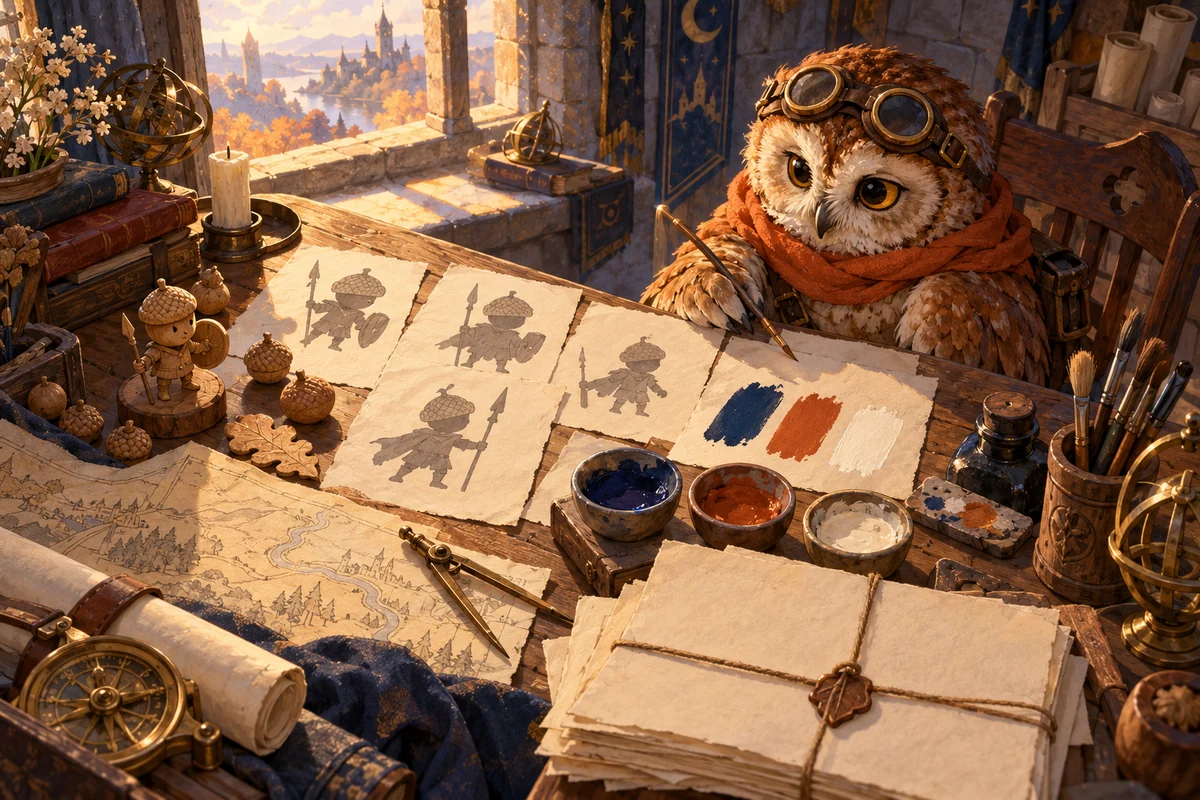
Name the job.
Is this a player character, a companion, one inventory item or a background? Give each request one clear purpose.
Set the anchors.
Choose a silhouette, two or three main colors and one material. Write them explicitly so the next asset can follow them.
Choose the canvas.
Use 512 or 1024 for General 2D stills. Choose a native 32, 48 or 64 target for Pixel Art and check it at its actual size.
Name the boundaries.
Keep the whole subject inside the canvas. For an edit, list what must stay and the specific clothing that can change.
STUDY 01 · NEW CHARACTER
A pumpkin knight,
from a blank brief.
One character, one pose and a palette small enough to carry into the next asset.
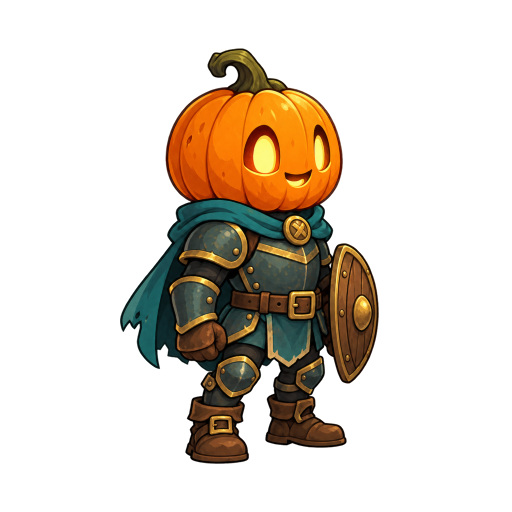
Write the silhouette first.
A pumpkin head, compact armor, a short cape and one wooden shield. Ask for a complete standing character with room around the hat, hands, shield and feet.
Choose a target you can inspect.
This study uses Cartoon, 512 × 512 and a right three-quarter view. Review the available settings and quote before confirming your own generation.
Inspect before reusing it.
Check the face, limbs, shield, full silhouette and transparent border. Keep the exported source unchanged when you use it for the matching set below.
A complete pumpkin head, teal cape and armor, worn brass details, boots and one shield. The PNG has real transparency and clear outer edges. One successful image is a case study, not a guarantee for every request.
Make the review concrete.
Start at the whole silhouette, then zoom in on the hands, shield rim, boots and cape edge. A dark preview can hide stray pixels, so inspect the transparent original against a light background too. If a detail fails, name that detail in the next request rather than changing the entire brief at once.
Character brief · read the full brief
Create one original pumpkin knight for a cozy Halloween adventure game. A carved orange pumpkin head with two friendly glowing eyes and a small smile, compact dark teal armor, a short teal cape, worn brass buckles, brown boots and one small wooden shield. Two arms and two legs, no weapon. Complete full body in a relaxed standing pose, facing right at a three-quarter angle. Readable silhouette, restrained amber highlights, simple clean shapes. Transparent background with generous clear space around the entire figure. No scene, lettering, frame, duplicate character or ground shadow.
STUDY 02 · EXACT-SOURCE OUTFIT EDIT
A new outfit.
The same axolotl.
Keep the creature you recognize. Name the clothing change precisely.
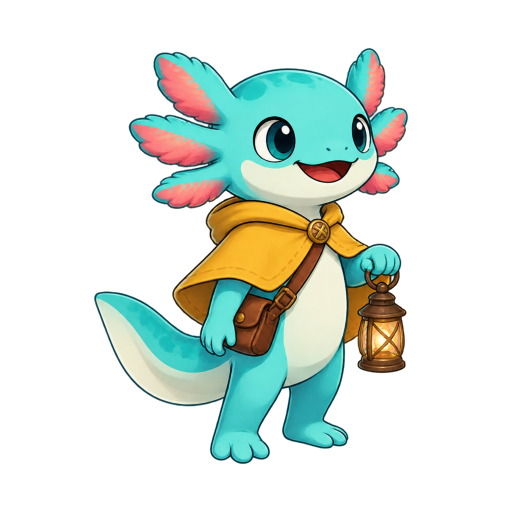
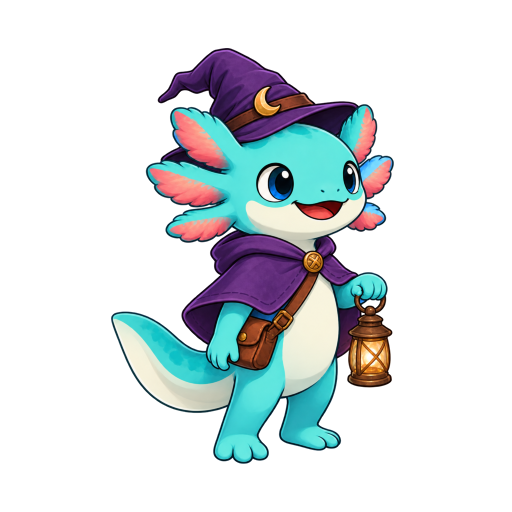
Keep
The turquoise species, pink gills, friendly face, cream belly, tail, lantern and satchel. Use the exact source file, not a description of a similar creature.
Change
Replace the mustard cape with a short violet cape and add a small violet witch hat. Keep the face and gills visible.
Review the difference
An AI outfit edit can redraw edges and details. Compare the face, pose, hands and accessories with the original before accepting it. This is a whole-image reference edit, not a pixel-locked clothing mask.
Compare in the same order.
Check the face and pink gills first, then the body and tail, then the lantern hand and satchel. Only after those match should you judge the hat and cape. Save the original separately so a later outfit never becomes your only copy of the character.
For your own character: choose its exact saved version or upload a reference you have permission to use. Preparing this brief does not attach the example image to your account.
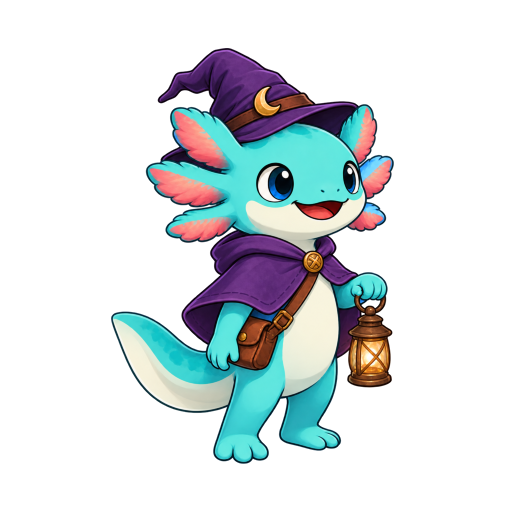
Outfit brief · read the full brief
Give the supplied turquoise axolotl adventurer a Halloween costume. Preserve its turquoise species identity, pink external gills, cream belly, exact recognizable friendly face and large eyes, two arms, two legs, tail, proportions, standing pose and the lantern in the same hand. Replace only the mustard cape with a deep violet short cape with a small brass clasp, and add one small crooked violet witch hat that leaves the face and all gills visible. Keep the brown satchel, existing warm brass lantern and same cartoon drawing style. One complete character, fully inside the canvas, transparent background, no ground shadow, no scene, no text. This is an outfit edit of the supplied character; do not turn it into a human, pumpkin or skeleton.
STUDY 03 · A MATCHING PROP & BACKGROUND
A matching item.
A world with breathing room.
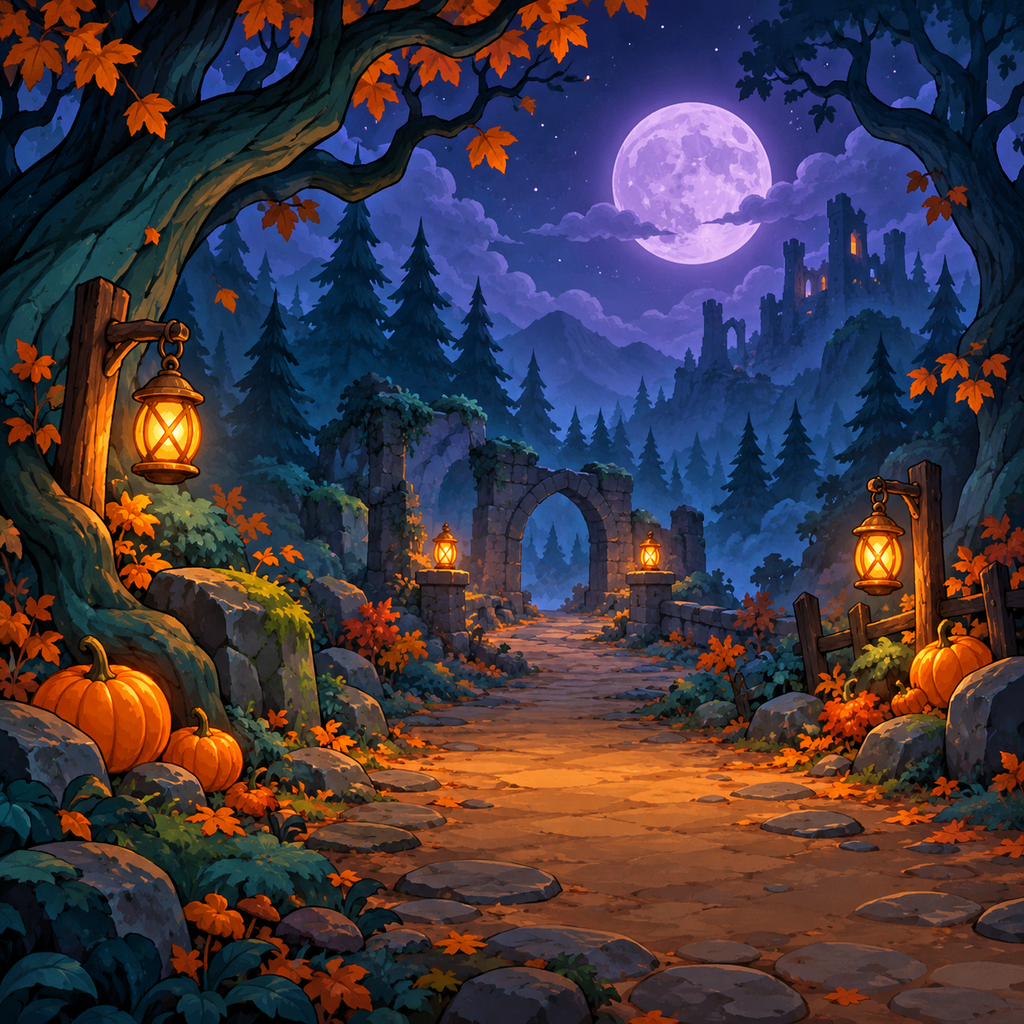
Two separate requests, one approved style reference. The knight from Study 01 supplies the palette and materials; each new file has its own job.
One item, complete.
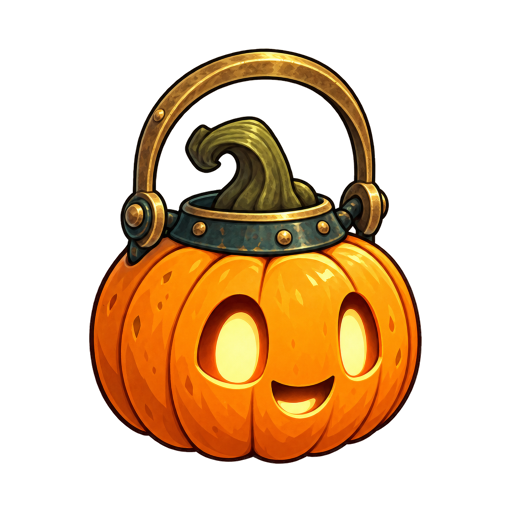
The lantern carries the knight’s orange, deep teal and worn brass. It stays separate from the scene, with a full handle, readable face and transparent outer border.
Download the lantern PNG
Select a style reference.
Choose the exact approved knight file in the workspace. The request borrows its palette and drawing style; it does not ask for another copy of that character.
Write the prop request.
Ask for one object, its material and its silhouette. A lantern should read as a lantern before its engraving or glow. Check the handle opening, stem, base and edges.
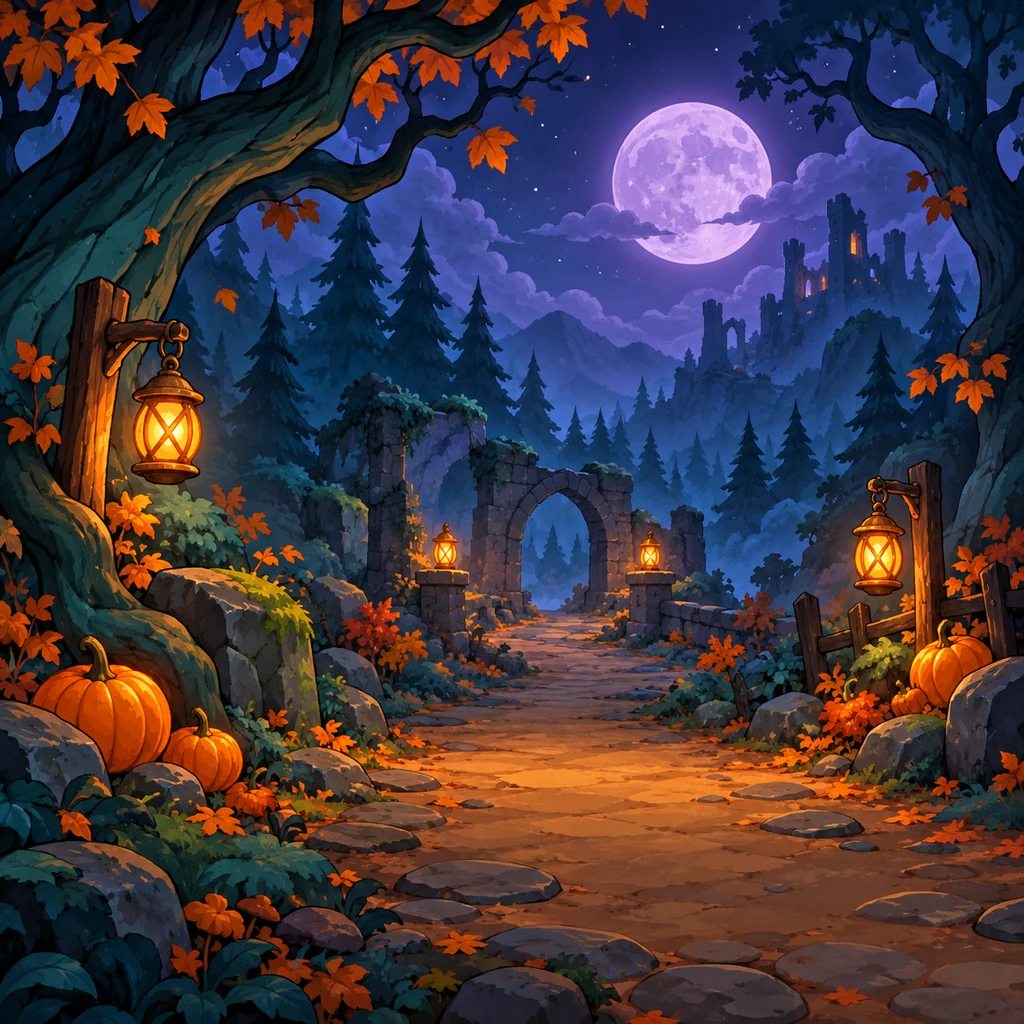
Write the background request.
Reserve a clear central path, use the edges for detail and separate foreground from distance. Keep the canvas opaque. Background artwork still needs layout work in your game.
What “matching” means here.
Look for shared orange and teal, worn metal and warm amber light. The scene can have different shapes and scale while belonging to the same project. These files demonstrate two still-image requests; they do not demonstrate a playable map, seamless tileset or layered scene export.
Prop brief · read the full brief
Help me select my approved pumpkin knight as the style reference in my workspace before creating this asset. Create one isolated pumpkin lantern inventory prop that belongs in the same cozy Halloween game as the supplied pumpkin knight. Use that knight only as a palette and rendering-style reference: warm orange pumpkin, restrained amber light, dark teal metal trim and worn brass handle. One round carved pumpkin lantern with a curved green stem, a friendly simple face and one hinged brass carrying handle. The complete object is centered with generous clear space on every side, transparent background. No limbs, character, shield, armor, scenery, lettering, ground shadow or extra items. This is a new prop, not a revision of the knight.
Background brief · read the full brief
Help me select my approved pumpkin knight as the style reference in my workspace before creating this asset. Create a complete square background illustration for the supplied pumpkin knight's cozy Halloween adventure game. Use the knight only as the palette and cartoon-rendering reference, not as an object to place in the scene. A moonlit enchanted forest: crooked deep teal trees at the edges, a broad clear central path, a small distant stone arch, a muted violet moon, a few orange pumpkins and warm amber brass lanterns near the path edges. Readable foreground, middle distance and background, uncluttered center and restrained warm accents. Fill the entire square canvas with an opaque painted environment. No people, knights, creatures, interface, lettering, grid, border, sprite sheet or transparency. Background artwork only, not a playable map or seamless tileset.
OPTIONAL · AFTER YOUR CHARACTER IS APPROVED
Give one action
a clear beginning and end.
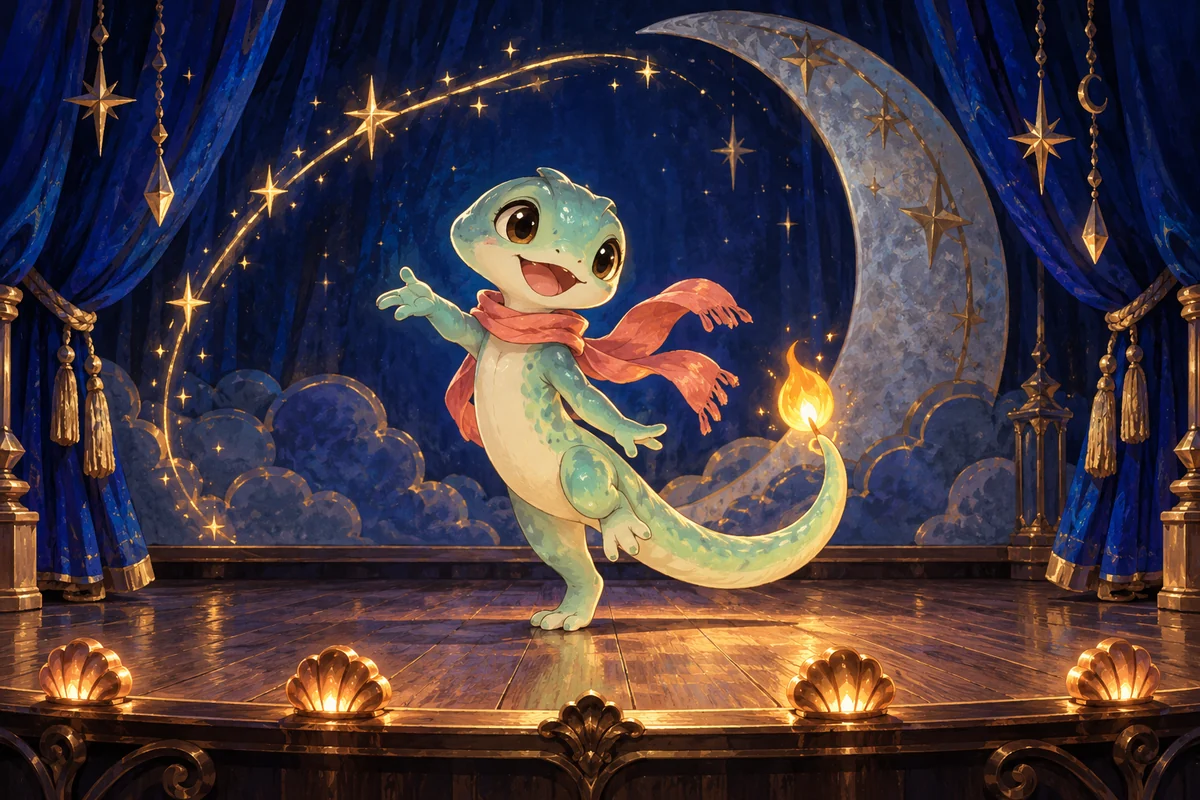
A wave, a lantern lift or a short idle can make a seasonal character useful. Choose the action because your scene needs it, then keep the motion brief focused.
- Start from your approved character. Select the exact source. Check the full silhouette before adding motion.
- Describe one action. For a greeting: stay in place, lift one free hand, wave once and return to rest. Keep the camera still and specify which held item stays in which hand.
- Review the actual result. Check identity, contact and the ending pose. Choose usable frames and adjust timing after generation, then inspect the available export.
Animation has its own plan and quote. Opening the workflow prepares no generation or charge.
BEFORE THE FILE GOES INTO YOUR PROJECT
Review the image.
Keep the source.
Look at the actual pixels.
Inspect at the intended display size and on light and dark backgrounds. Check clipping, stray marks, extra parts and transparency. A nice preview is not the same as a usable original.
Accept only what works.
Keep the original when editing. If identity, anatomy or the requested change is wrong, do not treat that output as an accepted asset.
Download available files.
Review your result in the workspace and download the formats available for it. These studies supply still PNGs; they do not demonstrate an animation, atlas, engine package or layered scene export.
The PNG links above contain these actual study files. For your generated work, plan and download access follow your current account and the License. See export documentation for supported file types.