Selection and order
Remove an unwanted pose or change its place while keeping the original source available.

Edit the poses in a PNG sprite sheet. Select and reorder frames, adjust their placement and timing, then preview and save the animation you want to keep.
Bring a PNG sheet and its grid, or a saved run. Continue in your workspace to edit the sequence and timing.
SPRITE SHEET EDITOR / SEE THE POSSIBILITY
Remove a pose, change the order or hold a moment longer. Check position, size and playback together.
Try it with your source →
The saved edit keeps three source poses and holds the middle pose for longer. The original sheet stays available.

3 source poses · 4 playback positions · 0.5 seconds
Edited captures of actual workspace interaction; waiting time is shortened. The returned artwork and its original timing are shown separately above.
YOUR IDEA. YOUR NEXT STEP.
Work on the poses you already have. An out-of-order frame, a long hold or a character that shifts size can change how the sequence feels. Judge each adjustment in full playback.
Remove an unwanted pose or change its place while keeping the original source available.
Give a key moment more emphasis or reduce an unwanted pause. Watch anticipation and recovery too.
Review alignment, planted feet and equipment across the sequence, not just in one isolated frame.
KEEP YOUR PROJECT MOVING
Once the rhythm feels right, try a new palette or share the sequence as a GIF.
Compare the supplied sheet with three actual palette outputs. The character geometry and transparency remain the same.
One supplied sheet. Three actual palette outputs. Every version keeps the same four poses, 1536 × 576 canvas and source transparency.
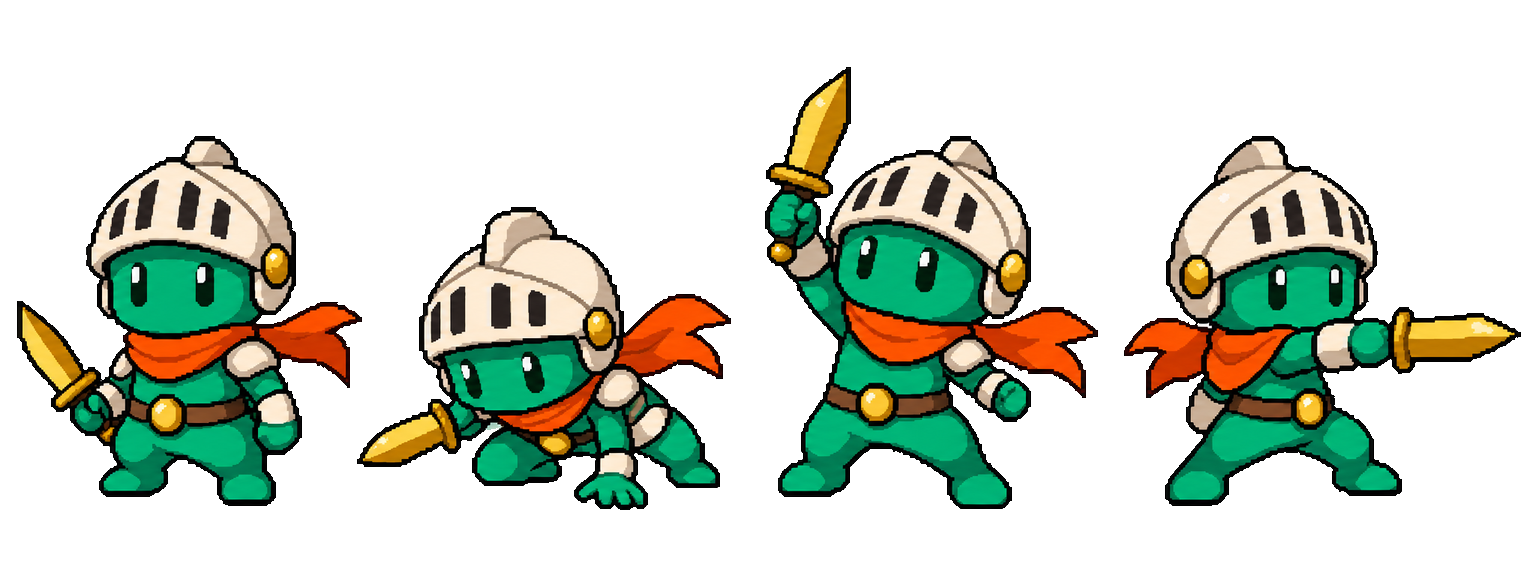
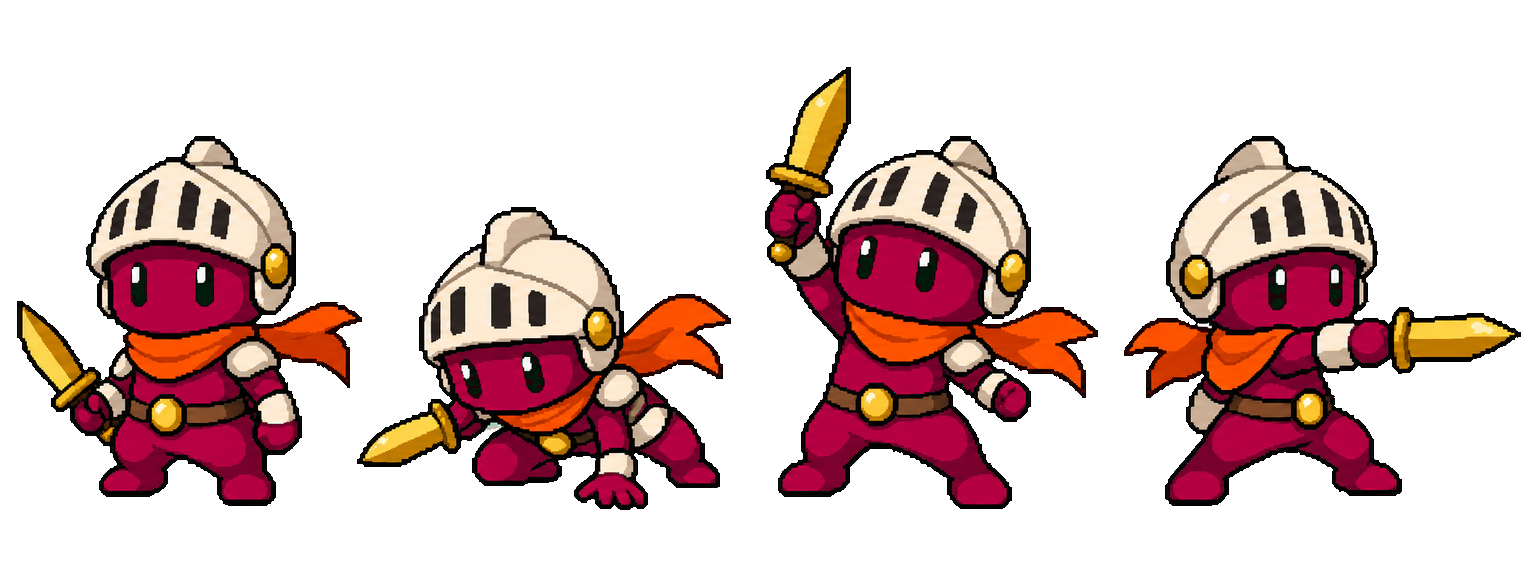
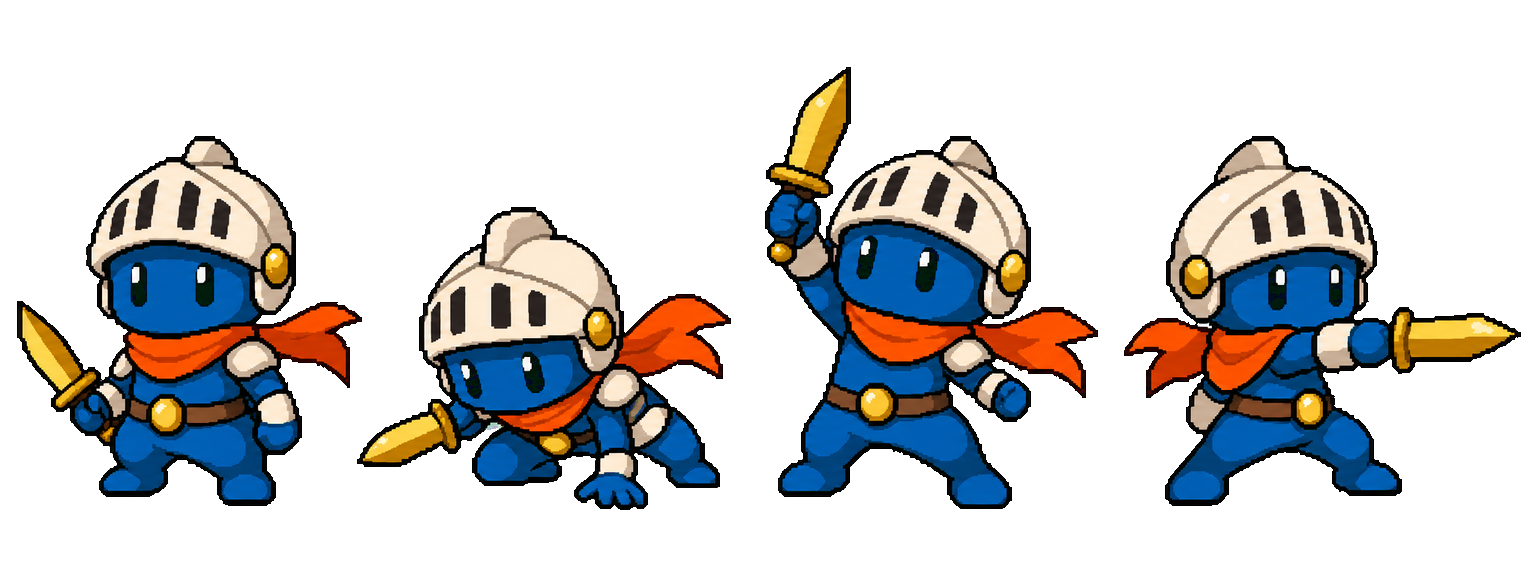
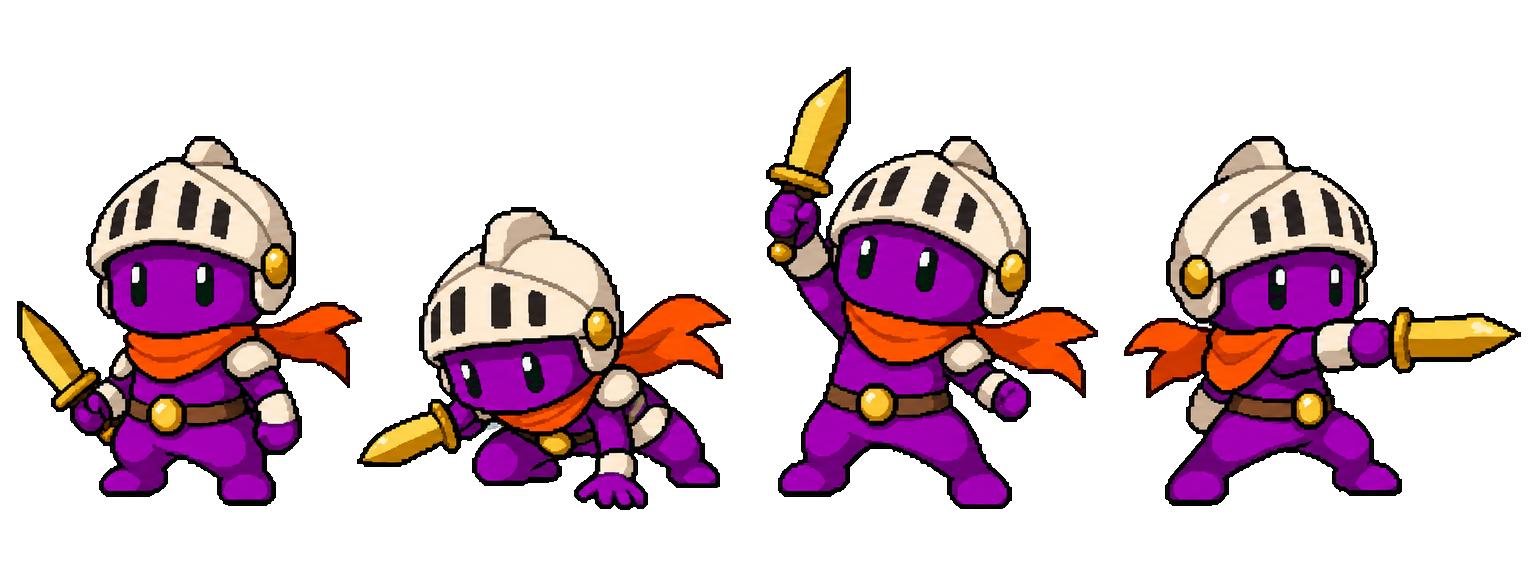
Actual mapped PNG outputs, with all four source poses preserved.
Recolor your animationTurn the same action frames into a GIF. Set the grid and pace, then preview the complete movement before sharing it.

4 frames · 670 ms exported loop

Imported at 6 FPS. The GIF keeps all four poses; its frame delays are rounded to the GIF format’s clock.
The example converts four supplied ghost poses at 6 FPS.
Create your GIFCOMMON QUESTIONS
Prepare your brief or source here, then continue in your workspace. Confirm the task there and review its results before exporting.
The downloadable otter input uses 4 columns × 1 row. The saved edit omits the fourth pose and holds the second at 8 FPS: four playback positions over half a second.
Choose a PNG sheet and specify its grid, then continue in your workspace to import it. A compatible native run ZIP can reopen its saved animation instead.
Select and reorder frames. Adjust position, scale, flip or rotation, then set speed and hold a pose where it matters.
Watch the complete action after your changes. Save the result and download its available exports.
Import a PNG sheet with the correct rows and columns. The editor needs complete cells and a saved animation run. It edits frame sequence, transforms and timing, with the precision controls available for a compatible saved frame.
Preview after each change and again after saving. Check that a useful complete action remains. Download the saved result rather than assuming an unsaved preview has changed the export.
The editor focuses on frame selection, sequence, transforms and timing. Compatible saved runs also expose their available per-frame precision controls in the workspace.
Yes. Import a PNG sheet using its row and column grid. Inspect the extracted frames for complete characters and correct ordering.
Yes. Use the available timing and hold controls for the imported run, then preview and save the result.
Compatible workflows support supplied effect layers and a separate ground shadow. Prepare the effect material first and review placement throughout the action.
The workflow creates a saved result from the input. Keep your original file and compare the edited playback before adopting the new version.
It is an actual workspace export from four supplied otter poses. The fourth pose was omitted and the second held at 8 FPS: four playback positions over half a second. The GIF stores the repeated pose as a longer hold, so it has three encoded images. The original sheet is preserved.
More workflow details in Docs. Frame allowances and Credits in Pricing.