CHAPTER 02 · 12 MIN READ
How to make a 2D walk cycle look natural
Learn the key poses in a walk, spot sliding feet, and adjust the timing for your game.
CASE STUDY / EXAMINE A REAL WALK
Watch the walk one frame at a time
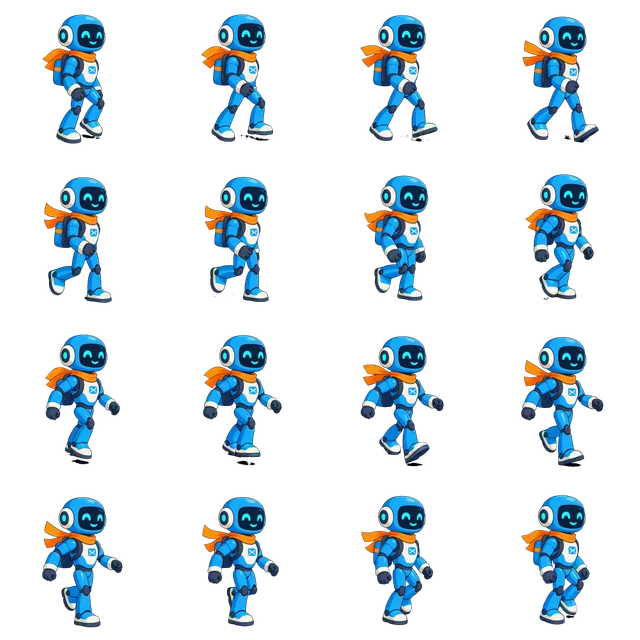
A walk cycle is a series of images that repeats to make a character look as if it is walking. Each image is called a frame. This robot walk uses 16 frames chosen from 145. Read the sheet from left to right, then move to the next row. Follow the feet and scarf as you go.
- Start at the top-left pose. Track one boot through the first row and notice when it moves forward and passes beneath the body.
- Continue into the next row. Compare the separation of the feet and how the other boot takes its turn.
- Look at the last pose and then return to the first. Identify any abrupt change in limb position, outline or scarf.
- Play the preview, then watch it again at the size you plan to use in your game. Some frames stay on screen longer than others; the loop takes about 1.13 seconds.
The saved walk in motion. Download the frames and timing below if you want to study them more closely.
Download the actual 4 × 4 sheet · Download the frame timing and position data
Draw the key moments in a walk
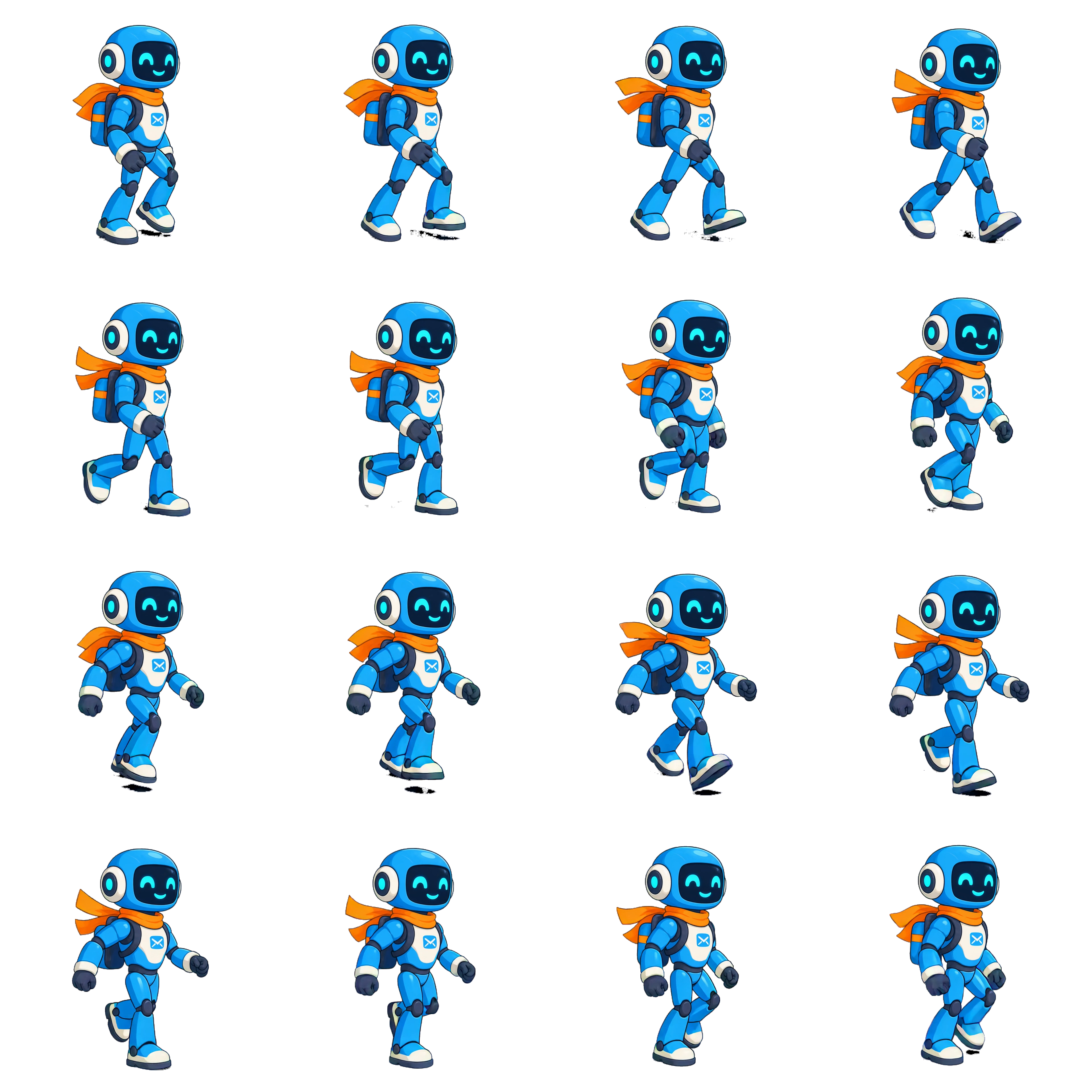
Look at these four moments from the 16-frame walk. Notice how the distance between the feet changes. They show the idea, but do not match the four drawing steps below exactly.
Now sketch two contacts and the two passing poses between them. A contact is where one foot reaches the ground; a passing pose is where the free leg crosses past the supporting leg. Draw the second half with the legs exchanged, then play the sequence.
One foot reaches forward while the other trails. Show where weight will land.
The free leg passes the supporting leg. Keep the direction of travel readable.
The opposite foot reaches forward. Compare spacing and scale with the first contact.
The other leg passes. Test the transition back to the first contact without adding an accidental pause.
These four moments are a starting point, not a required frame count. Add or adjust the images between them, then decide how long each should appear. Avoid repeating the same final and first image unless you want a pause.
REAL WORKSPACE / 73 SOURCE FRAMES
Choose frames without changing the action
Here is a different example: a red panda standing still. Its animation has 73 original frames. We opened it in the MotifDeck editor and chose 16 frames, then 32. Although this is a standing animation, you can use the same steps to edit a walk.
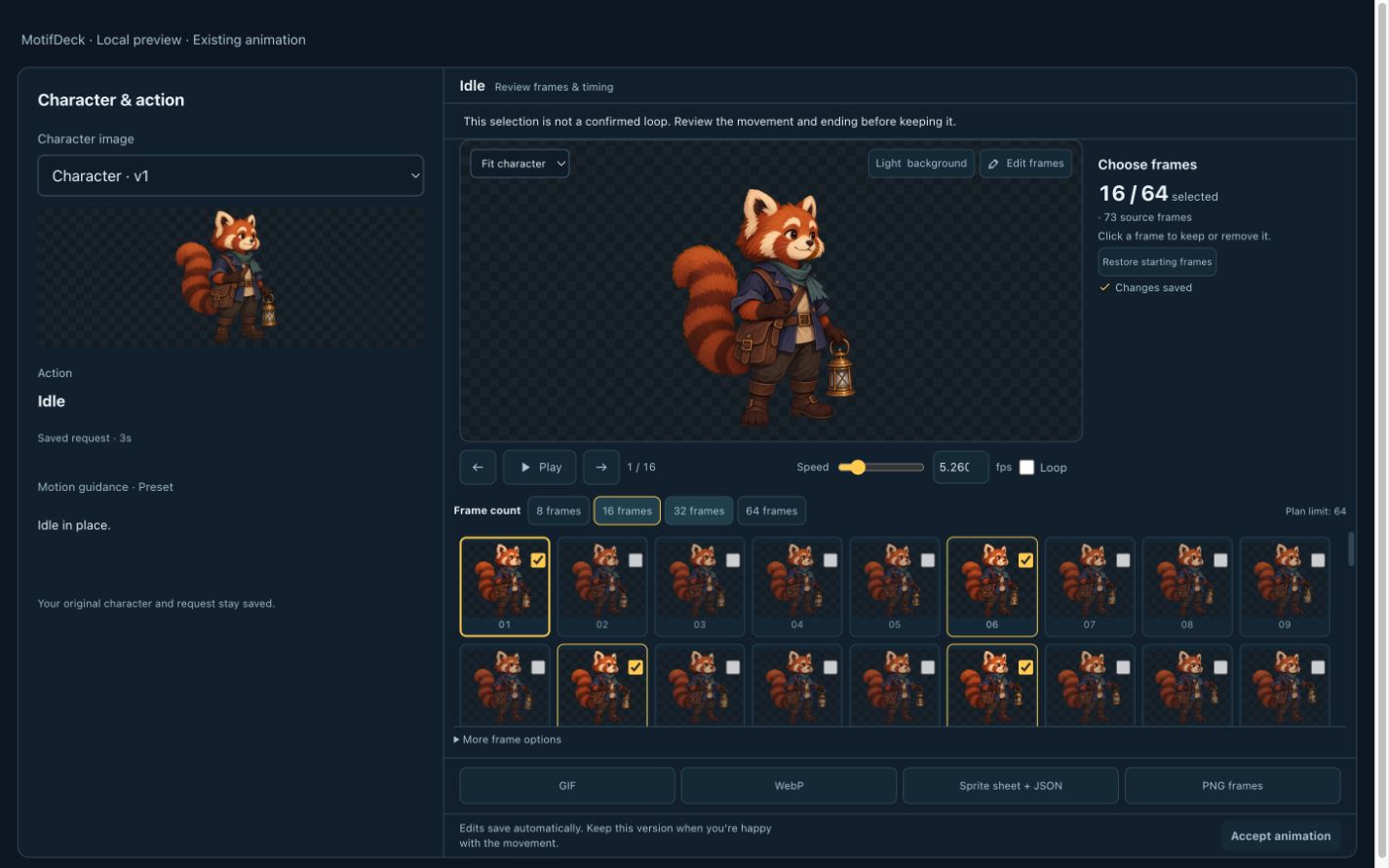
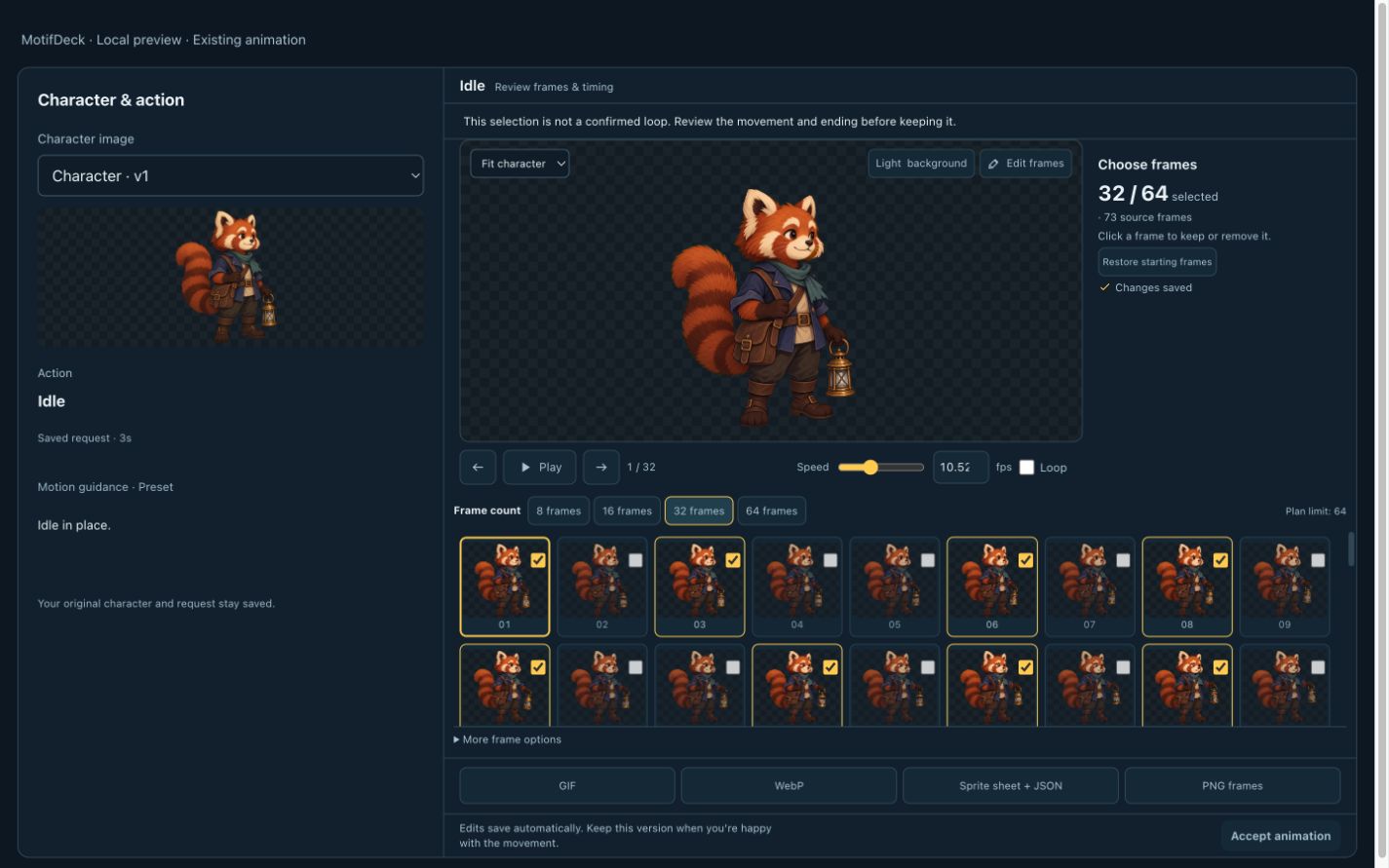
When we changed the frame count, the editor also changed the speed so the animation stayed about 3 seconds long. FPS means frames per second: at 10 FPS, ten images play each second. More frames do not always look better, so watch the result and check the character’s details and the transition from the last frame back to the first.
- Open an existing animation or a sheet in the sprite sheet editor. If importing a PNG, enter its actual grid size.
- Choose a frame count, then play the sequence. Note the selected count, speed and total duration before making changes.
- Try a different selection, compare the movement, and inspect important poses individually. Adjust the speed if the change makes the action too fast or too slow.
- Examine the final-to-first transition before enabling a loop. Test your result with the character’s actual in-game movement speed.
Click a screenshot to enlarge it. These images show a local demo; the frame limit available to you depends on your plan.
Why do the feet slide?
In a walk made to play in place, the foot on the ground moves backward within the image. Your game moves the character forward at the same time. If those speeds do not match, the foot can appear to slide. Add a temporary ground line to check the animation, then watch the character move in your game.
| What you see | Check first | Try next |
|---|---|---|
| Foot skates in game | Character speed and the length of each step | Change one speed at a time and retest |
| Whole body jumps | Image position and anchor point | Inspect frame position before redrawing the walk |
| A pause when the walk repeats | The last and first frames, and repeated frames | Adjust the selection or timing, then replay |
| Character jumps when changing direction | Whether both directions show a similar point in the step | Compare transitions in the running game |
PUT IT INTO PRACTICE
Try these steps with your own art.
Choose a character, create a motion, then check the frames and timing.
Explore character animation ↗