Everyday movement
Idle, walk and run can form a practical core set. Check the feet, silhouette and loop boundary.

Turn an approved character into motion. Review the clip, choose usable frames and timing, then export the files available for your result and plan.
Draft the action here, then choose your approved character in the workspace. Review task availability and the quote; select frames after motion.
Start with your character. Select available frames after motion.
AI SPRITE ANIMATOR / SEE THE POSSIBILITY
Start with continuous motion. Wing feathers, a trailing scarf and a little satchel follow the action, before you choose your game’s frames.
Start with your idea →
A COMPLETE MOVEMENT
Feathers open. The scarf trails. The satchel settles. These poses come from one continuous flight.

 Source 20
 Source 26
 Source 35
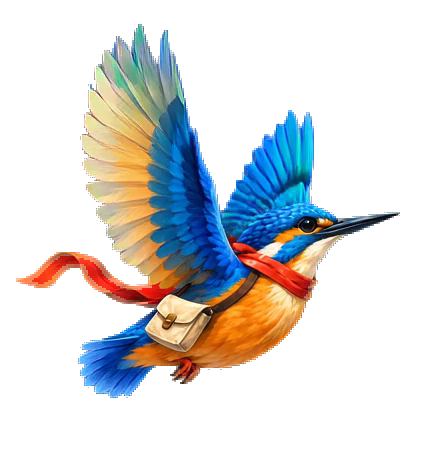 Source 44
 Source 53
 Source 62
73 source frames · A reviewed 2-second cycle · Choose your output frames afterward
CHOOSE AFTER YOU SEE THE MOTION
Try this real mechanical-beetle transformation. Compare selections at the source pace, inspect any pose and choose the frames you want. Your choices here are a preview; they are not saved to a project.
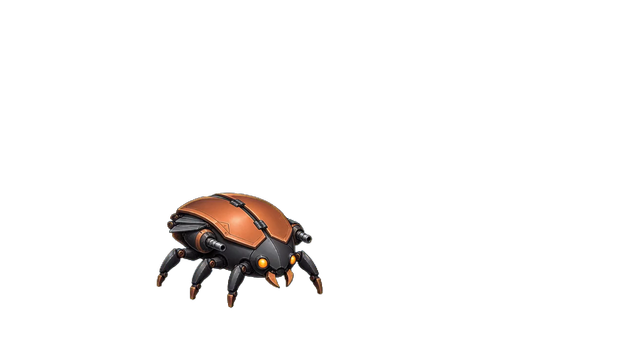
3.04s source span · Complete transformation, replayed at the source pace.
All 73 source frames · Scroll to explore. Click a frame to inspect.
Interactive example · choices here are not saved to a project. Create and select your own frames in the workspace. Free / Starter / Creator ≤16; active Pro / Studio ≤64 selected usable frames.
YOUR IDEA. YOUR NEXT STEP.
Give Moti an approved character and an action with a clear beginning and ending. Review the continuous motion first. Select frames and timing afterward, when you can see the available poses.
Idle, walk and run can form a practical core set. Check the feet, silhouette and loop boundary.
Include preparation, contact and recovery. Longer actions may need more of the available source frames.
Look at ears, hair, fabric and accessories throughout the action, especially when the body changes direction.
KEEP YOUR PROJECT MOVING
Refine the frames and timing of a move you like, then pack the animation you keep into a sprite sheet.
Watch an actual saved edit: omit one supplied pose, hold another and change the playback speed. Keep the original sheet for comparison.

The saved edit keeps three source poses and holds the middle pose for longer. The original sheet stays available.

3 source poses · 4 playback positions · 0.5 seconds
A real workspace edit and exported half-second GIF.
Edit your framesArrange your reviewed action frames into a sprite sheet. Check the order, canvas and playback together.
INPUT · A SAVED ANIMATION RUN
Four supplied mouse-blacksmith poses, ready to pack. The sheet maker arranges the saved frames; it does not create new poses.


The same four poses, playing together.
Every example cell comes from the same saved mouse-blacksmith run.
Create your sprite sheetCOMMON QUESTIONS
Prepare your brief or source here, then continue in your workspace. Confirm the task there and review its results before exporting.
Use an approved character image. Describe the action, camera view and what should stay fixed.
Arrange idle, walk, attack and other actions from the same character. Review each clip before turning it into game frames.
Inspect the available pool, remove unwanted frames and set the pace. Choose up to your plan’s limit, then preview and export.
Use an approved full character. Describe the action, view and details that should remain fixed. Say whether the result should loop or finish on a final pose; a death animation has a different ending from a run cycle.
Compare selections over the same action range at the same speed. More selected frames do not automatically improve the motion. Available source frames and your plan's export allowance still apply.
MotifDeck starts from an approved character, generates a motion video, then extracts and cleans up frames. You choose frames and timing after generation rather than committing to an 8- or 16-frame result beforehand.
Continuous motion gives you a sequence to inspect, including secondary movement such as capes, hair and accessories. Keep the usable details in the frames you select; inspect the actual clip because quality depends on the source and action.
Select and review usable frames after generation: up to 16 on Free, Starter and Creator, or up to 64 on active Pro and Studio. The source must contain enough usable frames. Downloading newly generated production files requires an eligible paid unlock for that exact version. Your uploaded originals and previously authorized downloads retain their access.
Yes. Arrange multiple actions from the same approved character and review each result independently. Check identity, clothing, equipment and movement before using the set.
Yes. Select, reorder and transform frames, adjust speed and holds, recolor a set, and work with supplied effect or shadow layers. Conditional transition and regeneration tools need compatible source material.
Watch the actual playback and inspect the selected poses. Checks can flag possible repeats, edge contact, large jumps or handedness problems, but they do not certify motion quality. Compare the character, equipment and complete action before accepting the result.
No. This page prepares an action brief for your workspace. Choose the approved source, check task availability and review the quote there before confirming generation.
More workflow details in Docs. Frame allowances and Credits in Pricing.