Check a sequence
Watch the supplied poses together to spot a missing frame or an unexpected jump.

See the action without opening a game engine. Turn a PNG sheet or compatible saved animation into a GIF to check its order, pace and personality.
Bring a regular PNG sheet with its grid and speed, or a compatible native run ZIP. Continue in your workspace to convert the saved sequence and review its GIF.
SPRITE SHEET TO GIF / SEE THE POSSIBILITY
Start with the correct grid. Set the pace, preview the sequence and export a GIF from the same supplied frames.
Try it with your source →
4 frames · 670 ms exported loop

Imported at 6 FPS. The GIF keeps all four poses; its frame delays are rounded to the GIF format’s clock.
Edited captures of actual workspace interaction; waiting time is shortened. The returned artwork and its original timing are shown separately above.
YOUR IDEA. YOUR NEXT STEP.
A GIF makes an animation easy to preview outside a game engine. Match a PNG import to its grid and speed, or use a native run’s saved selection and timing. Judge the same source action before and after conversion.
Watch the supplied poses together to spot a missing frame or an unexpected jump.
Use the returned animation when a teammate needs to see the motion without importing a sheet.
Set the rate for a new PNG import. Use Sprite Editor to adjust saved-run timing or give different poses different holds.
KEEP YOUR PROJECT MOVING
The GIF helps you spot what to change. Refine the sequence or explore a different palette next.
Watch an actual saved edit: omit one supplied pose, hold another and change the playback speed. Keep the original sheet for comparison.

The saved edit keeps three source poses and holds the middle pose for longer. The original sheet stays available.

3 source poses · 4 playback positions · 0.5 seconds
A real workspace edit and exported half-second GIF.
Edit your framesCompare the supplied sheet with three actual palette outputs. The character geometry and transparency remain the same.
One supplied sheet. Three actual palette outputs. Every version keeps the same four poses, 1536 × 576 canvas and source transparency.
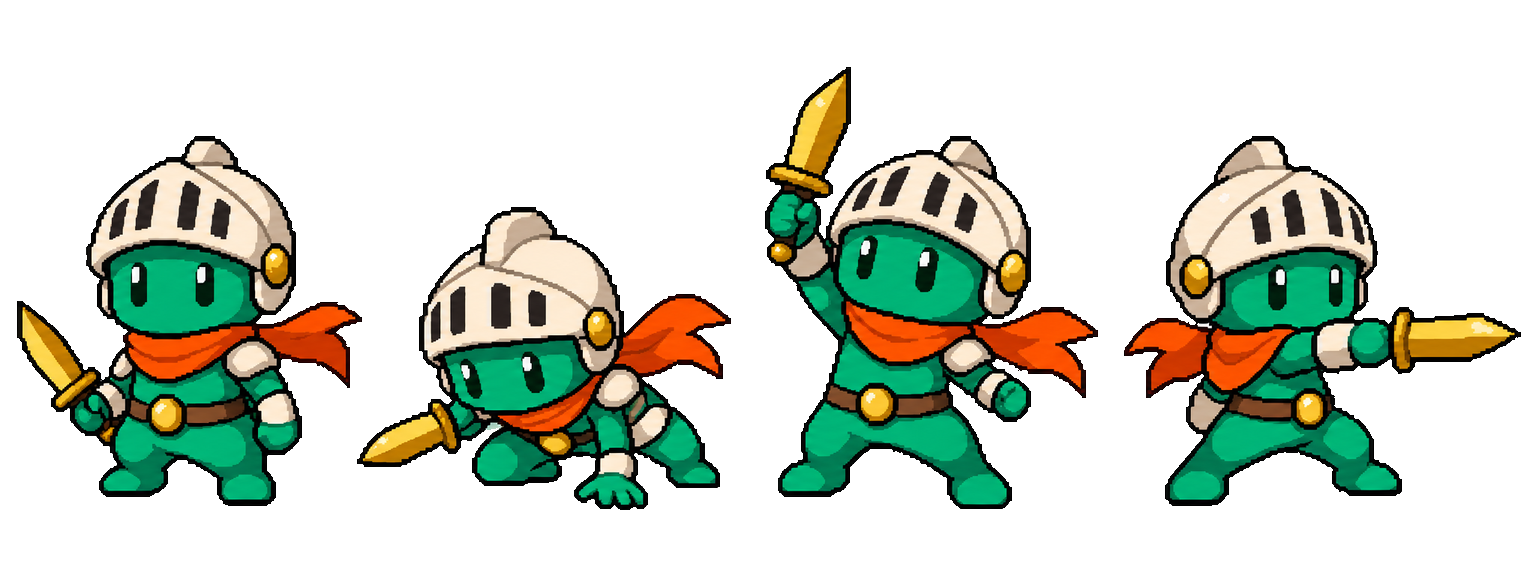
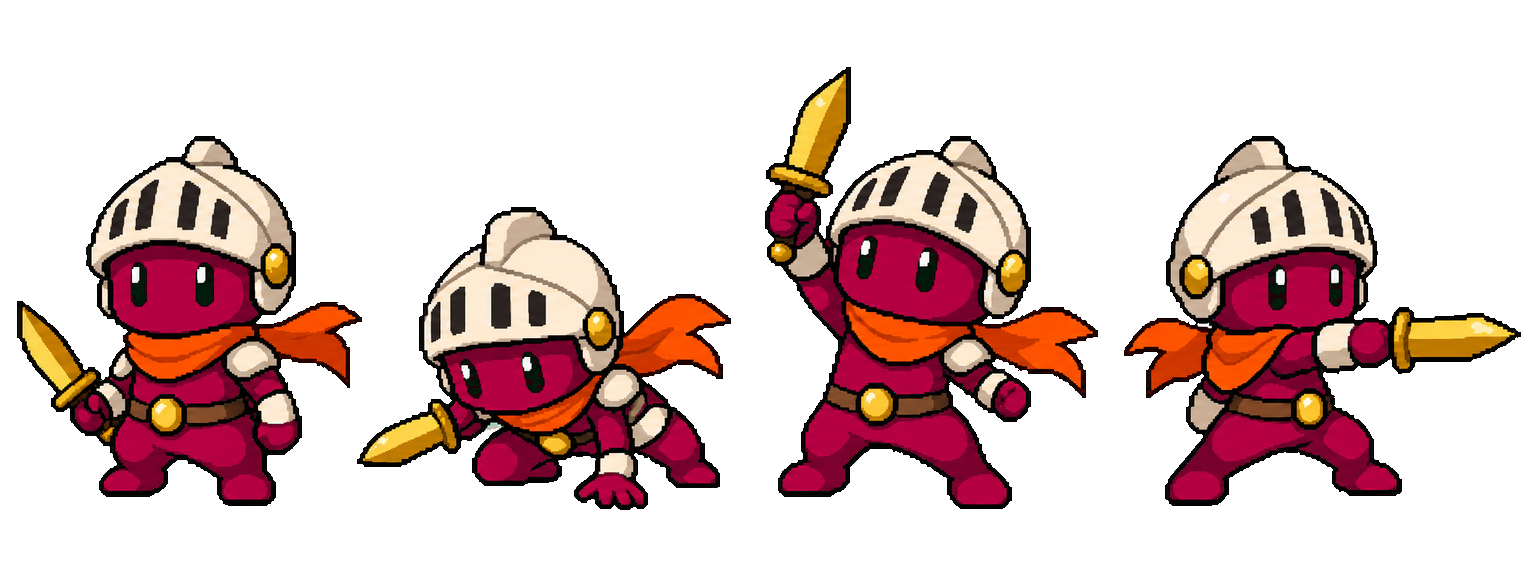
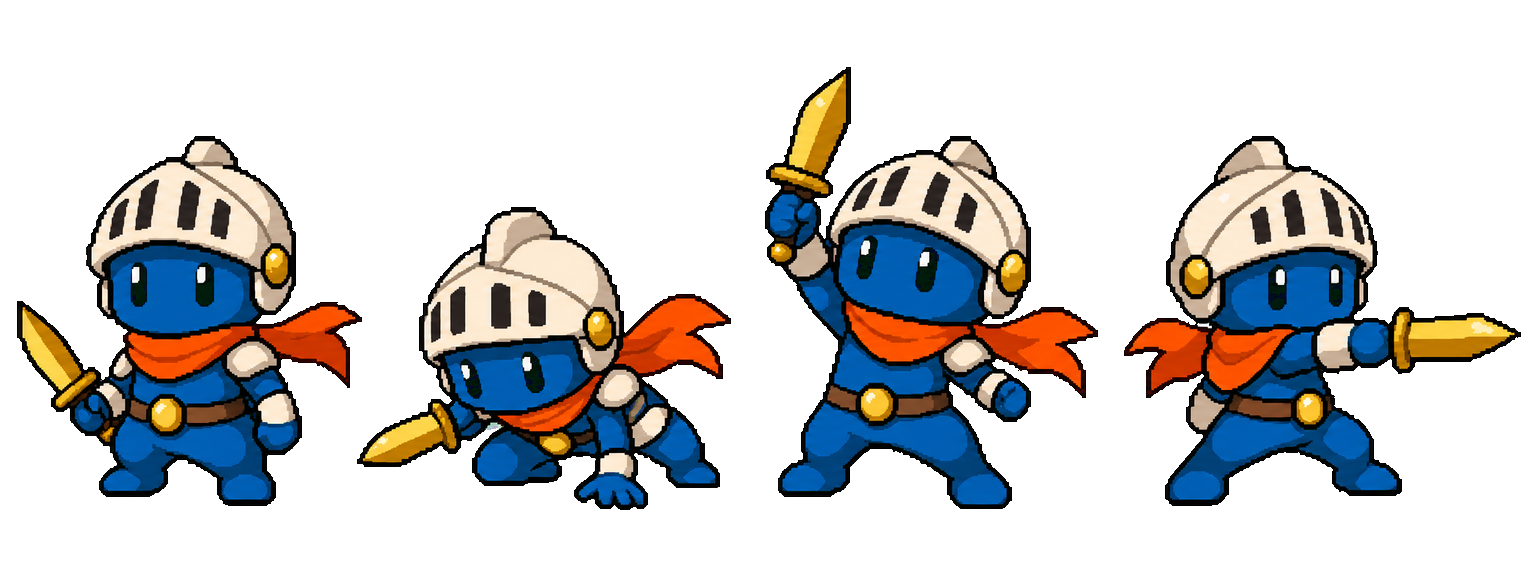
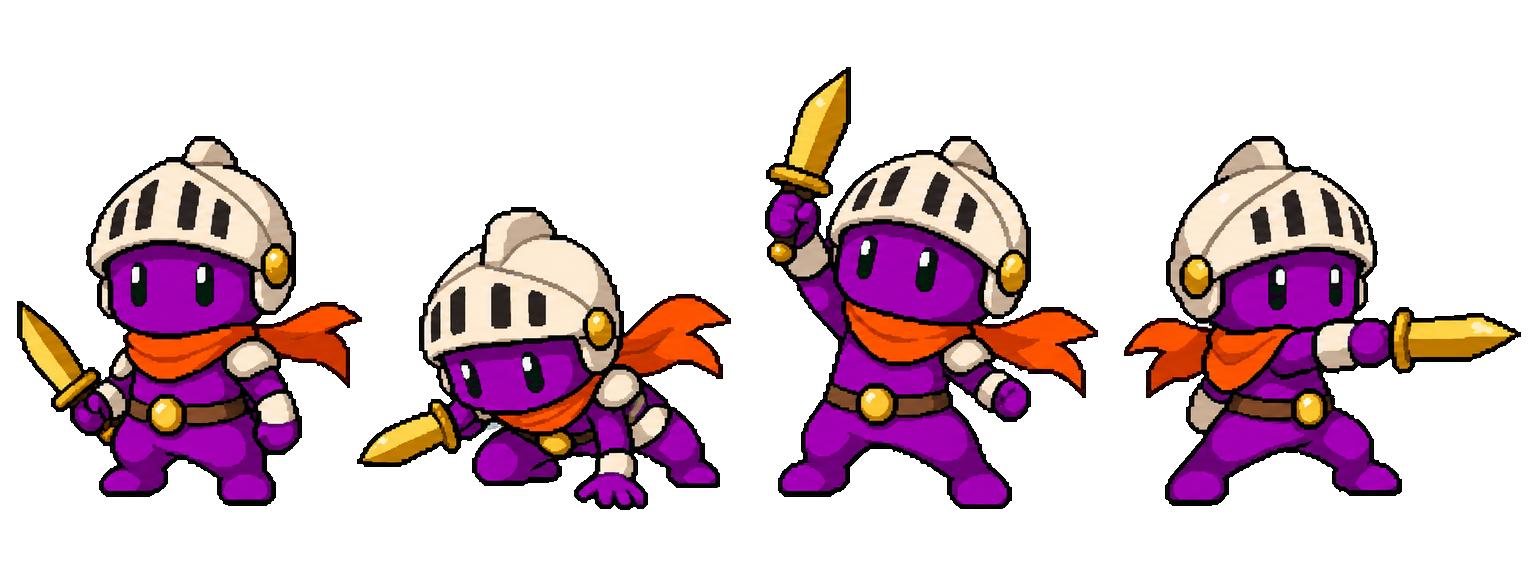
Actual mapped PNG outputs, with all four source poses preserved.
Recolor your animationCOMMON QUESTIONS
Prepare your brief or source here, then continue in your workspace. Confirm the task there and review its results before exporting.
The downloadable ghost input uses 4 columns × 1 row at 6 FPS. Its exported GIF lasts 670 milliseconds after the format’s frame-delay rounding.
Bring a regular PNG sheet, a compatible native run ZIP or a saved animation result. Continue in your workspace to convert it.
Set the grid and speed for a new PNG import. A saved run keeps its existing frame selection and timing; use the editor to change them.
Review the returned animation and available download. Share the preview or return to Sprite Editor for a more precise timing change.
For a regular PNG sheet, enter its exact grid and playback speed. For a compatible native run ZIP or saved result, keep its existing selection and timing. Keep the source; an incorrect PNG grid can introduce empty or cut-off frames.
Check the full loop and the actual downloaded GIF. Keep PNG frames, the atlas and available metadata for your engine; a GIF preview is not the same file as an engine-ready atlas.
Choose a PNG sheet here and continue in your workspace. Set its row and column grid and playback speed, convert it, then inspect the returned GIF and available download.
For a newly imported PNG, set the converter’s playback rate. For a saved run or individual pose holds, adjust the timing in Sprite Editor before exporting.
A GIF is useful for previews and sharing. Use the appropriate PNG frames, atlas and metadata for your game engine.
Check that the grid matches your source layout. Review the extracted frames and use a sheet with complete characters inside each cell.
Yes. Use a compatible native sprite-gen run ZIP or saved result to preserve its existing selected frames and timing. A ZIP of arbitrary images is a different input; assemble or import those images first.
More workflow details in Docs. Frame allowances and Credits in Pricing.