CHAPTER 03 · 10 MIN READ
How to fix a misaligned sprite sheet
Find out why an animation is cut off or jumps, and learn how to fix its frames and timing.
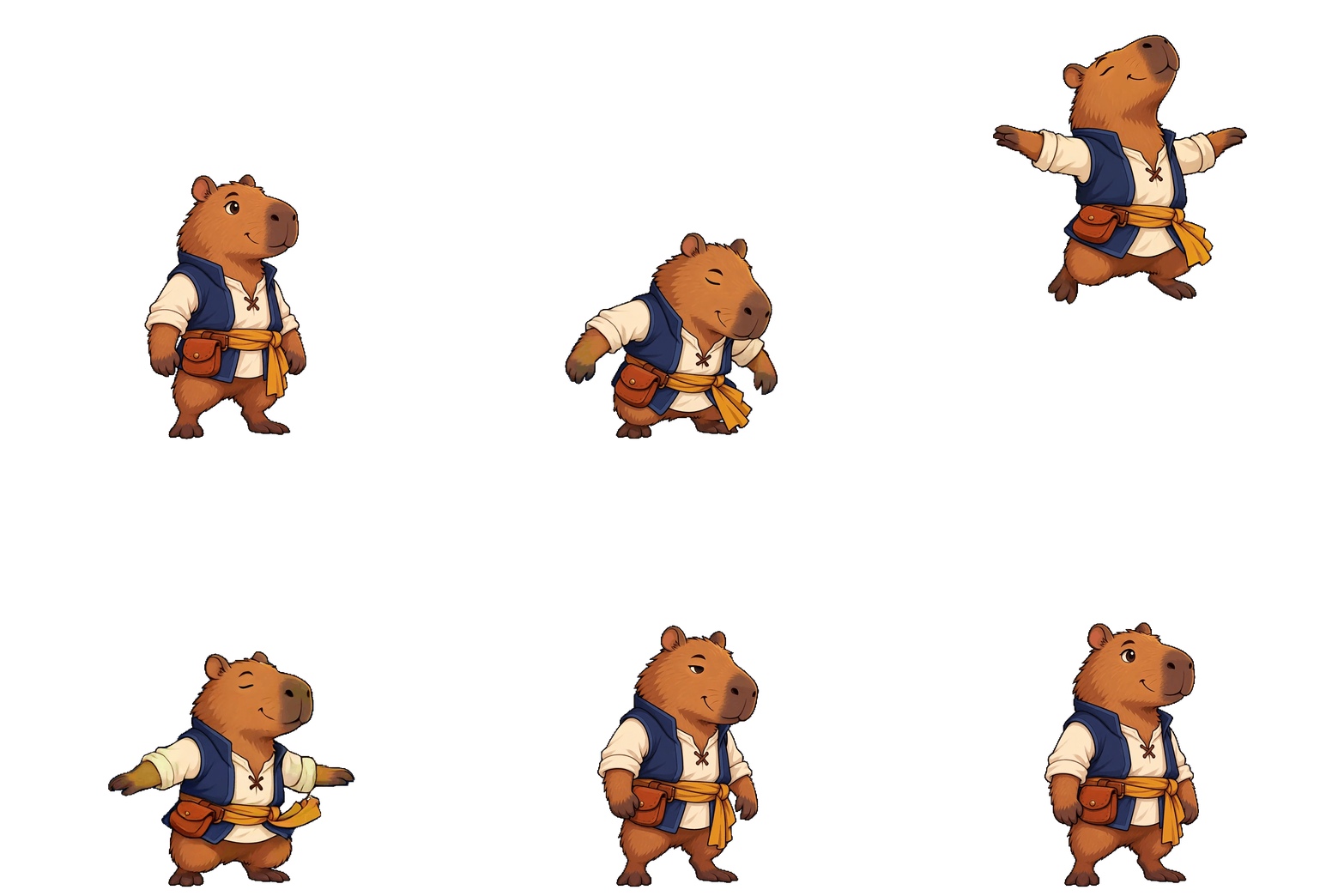
WORKED EXAMPLE / REAL JUMP ANIMATION
Count image cells and playback positions separately
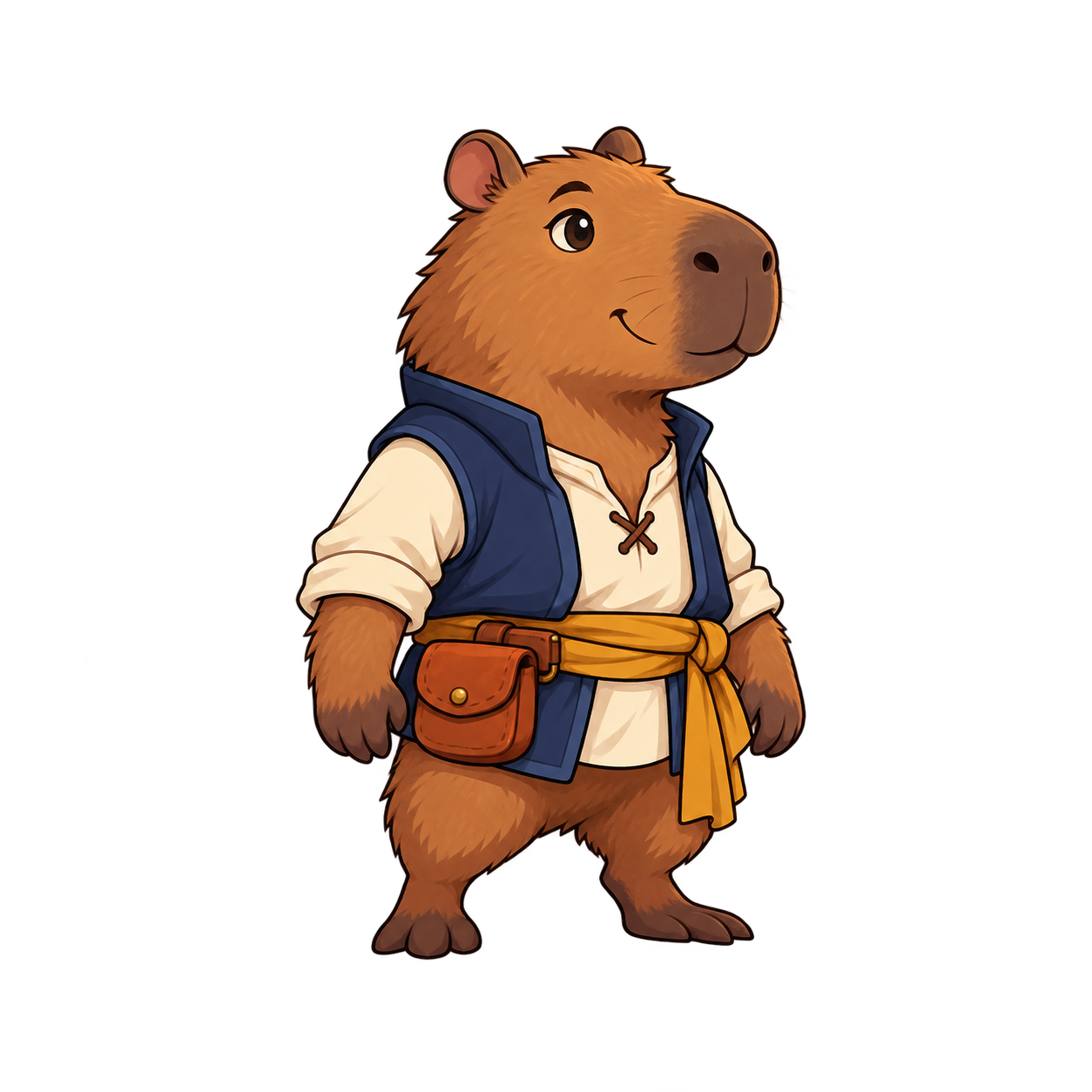
A sprite sheet is one image that contains the separate frames of an animation. This capybara jump uses 15 different poses. One pose is shown twice to make it last longer, giving the animation 16 playback positions. The sheet has 15 squares in one row; each square is 960 × 960 pixels. A separate JSON file records the order and timing.

ACTUAL SHEET / 15 COLUMNS × 1 ROW · SCROLL SIDEWAYS TO INSPECT
The sheet has 15 squares because the repeated pose only needs to be stored once. The JSON file tells the animation to show it twice. Divide the image width by 15, not 16, or your slices will cut through the character. The saved jump plays once at 6 frames per second and lasts about 2.67 seconds.
Download the actual sheet and JSON · Download the saved animation
PRACTICE / CHECK THE GRID
Preview the 15-cell sheet
- Download the sheet and JSON ZIP and extract it. Open Sprite Sheet to GIF and choose the PNG inside.
- Enter 15 columns × 1 row, then set a starting speed of 6 FPS. Check that each slice contains one complete pose without a piece of the next one.
- Compare your new GIF with the saved jump above. The PNG has no timing information, so the tool plays each of its 15 pictures once: at 6 FPS that takes 2.5 seconds. It also repeats the GIF. The original jump plays once in about 2.67 seconds, with an extra pause.
- Use the JSON file when setting up the animation in your game, or use the sprite sheet editor to adjust timing or holds. This jump plays once: check the takeoff and landing instead of making it repeat automatically.
You can use these steps with your own sheet too. Check its dimensions first: a different sheet may need a different number of rows and columns.
Import the poses into Godot
In Godot, add a Sprite2D node and assign the PNG to its Texture. In the Inspector, open Animation and set Hframes to 15 and Vframes to 1. Change Frame from 0 to 14 and check that each square shows one complete pose.
To animate it, add an AnimationPlayer and create an animation about 2.67 seconds long. Add keys for the Sprite2D Frame property at 1/6-second intervals. Set the values in this order: 0–7, 7 again, then 8–14. The repeated 7 holds that pose twice as long. Leave looping off for this jump. The JSON lists the exact timing; you must set up the animation yourself, because Godot does not import this file automatically. See the Godot guide for adding keys and playing the animation. Preview it in your own scene.
For pixel art, use nearest-neighbour filtering to keep pixel edges sharp, and try a whole-number scale such as 2× or 4×. The capybara is illustrated 2D art, not pixel art.
Which problem are you looking at?
| Symptom | Likely place to inspect | Concrete check |
|---|---|---|
| Neighbouring pose appears | Grid and margins | Verify original dimensions and 15 × 1 slicing |
| Weapon or limb is cut off | Cell boundary | Give the full pose room inside its canvas |
| Character jumps in place | Image position and pivot | Compare the same body landmark across cells |
| Missing pause | Frame order and holds | Check the repeated position in the JSON |
| Pixel art looks blurry | Filtering and display scale | Check point/nearest filtering and integer scale |
Do not force every foot to the same height: a jumping or stepping foot is supposed to move. Align the intended stable reference, not every moving body part.
PUT IT INTO PRACTICE
Try these steps with your own art.
Choose and adjust your frames, then check the exported animation in your game.
Explore the sprite sheet editor ↗