A short loop
Find the actual cycle boundary before selecting a compact set of poses.

Start with the MP4 you already have. Extract a reviewable frame pool, then decide which poses belong in your game.
Bring an MP4 with a supported solid background. Continue in your workspace to review and extract its frames.
VIDEO TO SPRITE SHEET / SEE THE POSSIBILITY
Extract the complete source pool first. Inspect the poses, keep the useful frames and set the timing afterward.
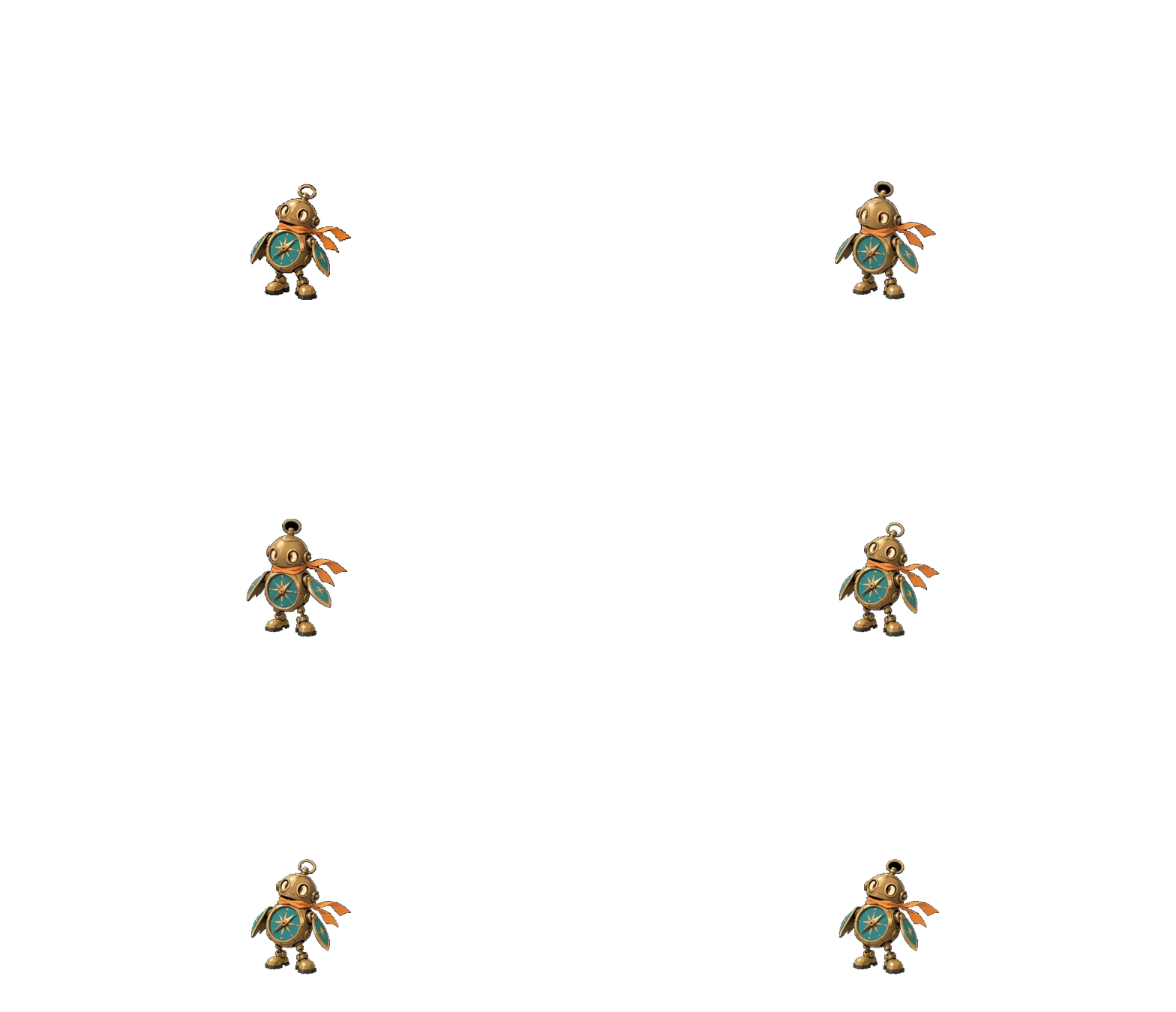
Try it with your source →A compass robot on its solid extraction background.
RESULT · THE EXTRACTED CHARACTER

158 extracted source frames. This preview uses one fixed crop at 288 × 308, without enlarging the character.
YOUR IDEA. YOUR NEXT STEP.
Start with the complete source footage. Extract its available frames, inspect the useful action range and choose a sequence that reads well. The number of video frames is not the same as the number of frames in one loop.
Find the actual cycle boundary before selecting a compact set of poses.
Keep the build-up, main movement and recovery instead of cutting out the moment that makes the action readable.
Use the extracted pool as the source for later selection, timing and sheet packing.
KEEP YOUR PROJECT MOVING
Refine the extracted poses, then pack the sequence you want to keep.
Watch an actual saved edit: omit one supplied pose, hold another and change the playback speed. Keep the original sheet for comparison.

The saved edit keeps three source poses and holds the middle pose for longer. The original sheet stays available.

3 source poses · 4 playback positions · 0.5 seconds
A real workspace edit and exported half-second GIF.
Edit your framesArrange your reviewed action frames into a sprite sheet. Check the order, canvas and playback together.
INPUT · A SAVED ANIMATION RUN
Four supplied mouse-blacksmith poses, ready to pack. The sheet maker arranges the saved frames; it does not create new poses.


The same four poses, playing together.
Every example cell comes from the same saved mouse-blacksmith run.
Create your sprite sheetCOMMON QUESTIONS
Prepare your brief or source here, then continue in your workspace. Confirm the task there and review its results before exporting.
Use a character clip with a supported solid background. Add the matching character PNG when available.
Choose the background key and convert. Review the extracted silhouette, equipment, margins and motion checks.
Open a compatible saved result to select frames and timing. Download the files returned for the run.
Bring a supported clip with a complete character and a useful view. Check the current upload limits in the tool. Extraction does not repair missing limbs, a changing camera or a bad source action.
Check each selected pose, transparent edges and the playback boundary. Compare versions over the same source range and duration. Keep the actual returned result; the illustrated examples are separate from your upload.
Yes. Upload an MP4 character clip and choose its supported background key. The workflow extracts frames and creates available outputs when the source passes its checks.
This entry accepts MP4 input. Choose an MP4 animation clip with a supported solid background for frame extraction.
No. This workflow keys supported solid backgrounds. Inspect the result for missing body parts, leftover color and clipped equipment.
Choose available usable frames after extraction. Free, Starter and Creator allow up to 16; active Pro and Studio allow up to 64 selected frames. The actual source pool may contain more candidates.
No. Files are processed by MotifDeck’s configured service. The tool reports an unavailable or failed run if processing cannot complete, instead of substituting a demonstration.
No. Continue with the clip and settings in your workspace before starting the supported extraction task. Inspect its actual frames and returned files there.
More workflow details in Docs. Frame allowances and Credits in Pricing.